
🖱️ Mouse Polling Rate Test – Live Hz, Chart & History
🎯 Move your mouse here — rapid motion for accurate Hz
📋 Saved Results History
Click "Save Result"
Introduction
Ever wondered if your mouse is truly keeping up with you? A polling rate test measures how often your mouse reports its position to your computer – and it makes a big difference, especially in games. If you’ve asked yourself what is a good polling rate for gaming, you’re in the right place. In this guide, you’ll learn how to test mouse polling rate online, understand your results, and even fix a low polling rate. No downloads needed. Just your mouse and a few seconds. Let’s dive in and see if your gear is performing at its best.
Table of Contents
What is a Polling Rate Test? (And Why It Matters)
A polling rate test measures how many times per second your mouse reports its position to your PC. This rate is shown in Hertz (Hz). The higher the Hz, the smoother and more responsive your cursor feels – especially in fast games.
Polling Rate vs. DPI – What’s the Difference?
Don’t confuse polling rate with DPI. DPI controls how far your cursor moves when you move the mouse. Polling rate controls how often it reports that movement. Both matter, but for very different reasons.
Your Live Polling Rate Tester
Try it yourself. Move your mouse quickly inside the box below. Your mouse polling rate will appear in real time. This mouse rate checker works instantly – no download, no install. It’s a mouse polling rate test online free that gives you instant results.
For the most accurate reading, move your mouse in fast circles for a few seconds. You’ll see your average and peak Hz. Ready to test your mouse Hz checker? Give it a go right now.
How to Test Your Mouse Polling Rate (Step-by-Step Guide)
Testing is simple. First, close background apps. Plug your mouse directly into a USB port – avoid hubs. Then, open the tester above. Move your mouse in fast circles for 5–10 seconds. Watch your mouse rate checker display the average and peak polling rate in Hz.
For best results, test a few times. If the number seems low, try a different USB port. That’s it. Now you know how to test mouse polling rate like a pro.
Decoding Your Results: What the Numbers Mean
Understanding Polling Rate Values
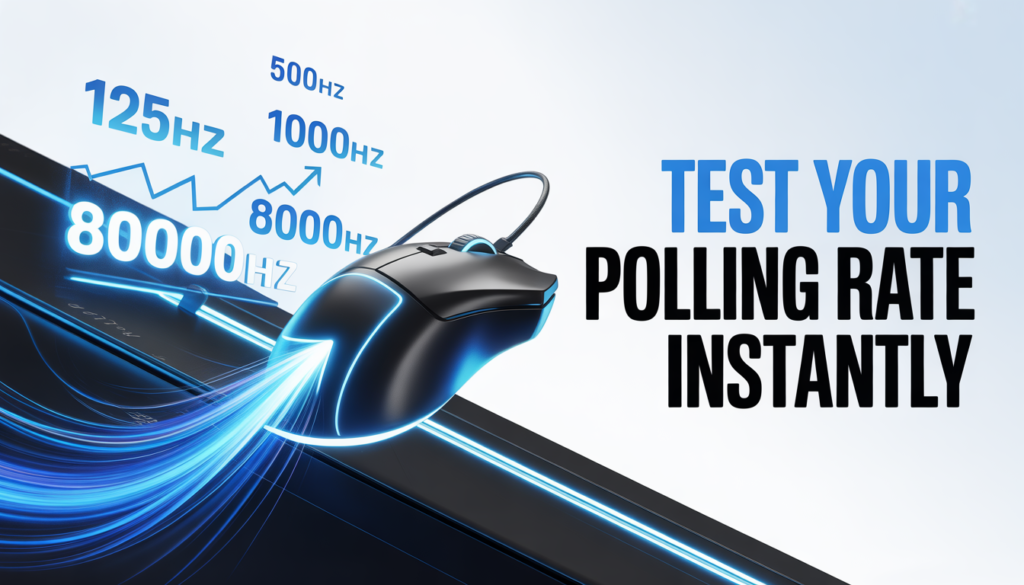
125Hz = 8ms response (basic). 500Hz = 2ms (good). 1000Hz = 1ms (gaming standard). 4000Hz and 8000Hz are ultra-fast but need a powerful PC.
What is Jitter and Why Does It Matter?
Jitter means unstable timing between reports. Even with a high average polling rate, high jitter causes micro-stutters. A good polling rate stability test shows low jitter for smooth, responsive aim.
The Best Polling Rate for Your Needs
For General Use & Office Work
125Hz or 500Hz is plenty. You won’t notice lag, and it saves battery on wireless mice.
For Competitive & FPS Gaming
1000Hz is the gold standard. It gives you 1ms response time. Is 1000Hz polling rate good? Absolutely. Higher rates like 4000Hz offer tiny gains but need more CPU power.
Polling Rate & Wireless Mice
Bluetooth mice often cap at 125Hz. For gaming, use a 2.4GHz dongle to reach 1000Hz.
Browser vs. Desktop Software: Pros & Cons
Browser testers are quick and convenient. No install needed. Perfect for a fast mouse polling rate test online free. But they may struggle with very high rates like 4000Hz or 8000Hz.
Desktop software (like MouseTester) gives more accurate, detailed graphs. It captures jitter and stability better. However, it requires download and installation.
For most users, a browser mouse rate checker is enough. For serious analysis, go with software.
Troubleshooting: Why Your Polling Rate is Low
Fixing a Low or Unstable Polling Rate
Check your mouse software first. Then switch USB ports (avoid hubs). Update drivers. On Windows, change polling rate in mouse properties. A mouse polling rate drops fix often takes seconds.
The Impact of High Polling Rates (4000Hz/8000Hz)
High rates eat CPU power. Older games may stutter. You need a strong PC and high-refresh monitor to benefit. Otherwise, stick with 1000Hz polling rate – it’s reliable.
Frequently Asked Questions (FAQ)
1. Does polling rate affect DPI?
No. DPI (dots per inch) controls how far your cursor moves when you move your mouse. Polling rate controls how often your mouse reports its position. They work independently. You can have high DPI with low polling rate – but your aim may feel choppy.
2. Is 8000Hz polling rate worth it for gaming?
For most players, no. 8000Hz reduces latency by only about 0.875ms compared to 1000Hz. You need a powerful CPU, a high-refresh monitor (240Hz+), and very fast reflexes to notice any difference. Stick with 1000Hz polling rate unless you’re a pro.
3. How to test mouse jitter accurately?
Use the live tester above and look for stability percentages. For deeper analysis, download MouseTester (free). It shows X/Y interval graphs. Low jitter means smooth tracking. High jitter causes micro-stutters even if your average mouse polling rate looks good.
4. Why is my mouse polling rate lower than advertised?
Common reasons: using a USB hub, plugged into a USB 1.0 port, outdated drivers, or background apps hogging CPU. Also, Bluetooth mice often cap at 125Hz. Try a direct USB 2.0 or 3.0 port. Run a polling rate test again after closing unnecessary programs.
5. Can I change my mouse polling rate without software?
Yes, on Windows. Go to Device Manager > Mice > Properties > Advanced Settings. Some mice have a dedicated button or software from the manufacturer (Logitech, Razer, etc.). On Mac and Linux, you may need terminal commands or third-party tools.
6. Does polling rate affect battery life on wireless mice?
Absolutely. Higher polling rates (1000Hz) drain battery much faster than 125Hz or 250Hz. For office work, set a lower polling rate in Hz to extend battery life. For gaming, plug in or use a 2.4GHz dongle and accept shorter battery time.
7. What’s the difference between polling rate and refresh rate?
Polling rate is how often your mouse talks to your PC (Hz). Refresh rate is how often your monitor updates the image (Hz). Both affect perceived smoothness. A high polling rate mouse paired with a 60Hz monitor still feels responsive, but a 240Hz monitor lets you fully benefit from 1000Hz or higher.
Conclusion
You now know how to run a polling rate test and understand your results. Whether you’re a casual user or competitive gamer, knowing what is a good polling rate for gaming helps you get the most from your gear. Test your mouse polling rate online free using the tool above. If numbers look low, try our troubleshooting tips. A quick mouse rate checker can reveal hidden lag. Now go test your mouse – and game with confidence.