
Introduction
Have you ever moved your mouse just a tiny bit and watched the cursor fly across the screen? What is Mouse DPI? Or maybe you moved it a lot, and the cursor barely budged? That is mouse DPI at work.
Mouse DPI stands for Dots Per Inch. It is simply a way to measure how sensitive your mouse is. The higher the DPI, the faster your cursor moves when you move your mouse. The lower the DPI, the slower and more precise your cursor moves.
Think of it like the volume knob on your speakers. Turn it up, and everything gets louder (faster). Turn it down, and everything gets quieter (slower). Mouse DPI works the same way for your cursor.
In this guide, we will explain what is mouse DPI in plain English. You will learn how it works, how to change it, and which setting is best for you. No technical jargon. Just simple, helpful answers.
Table of Contents
What is DPI on a Mouse?
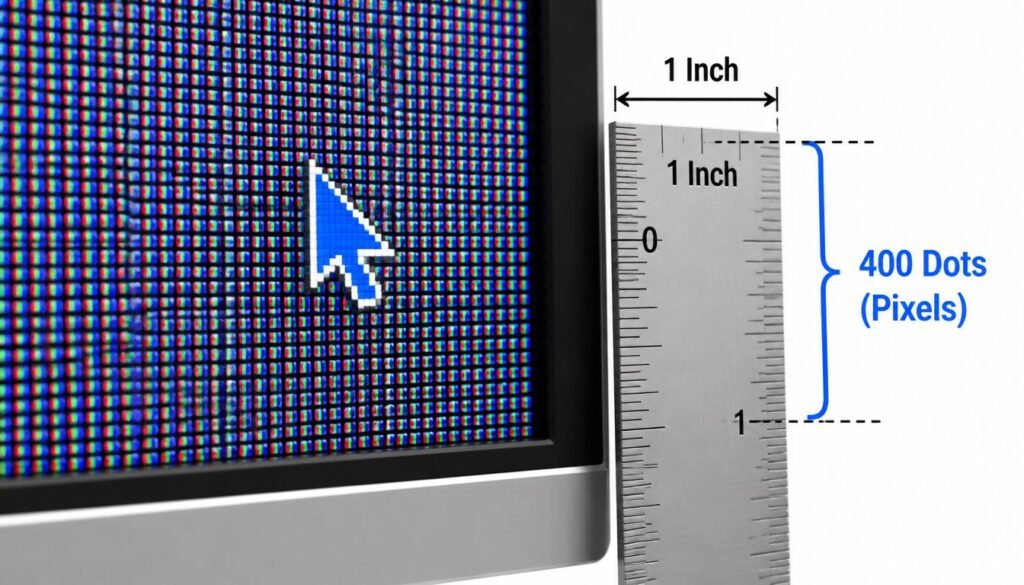
DPI stands for Dots Per Inch. It tells you how many pixels your cursor moves on the screen for every inch you move your mouse in real life.
Here is a simple example:
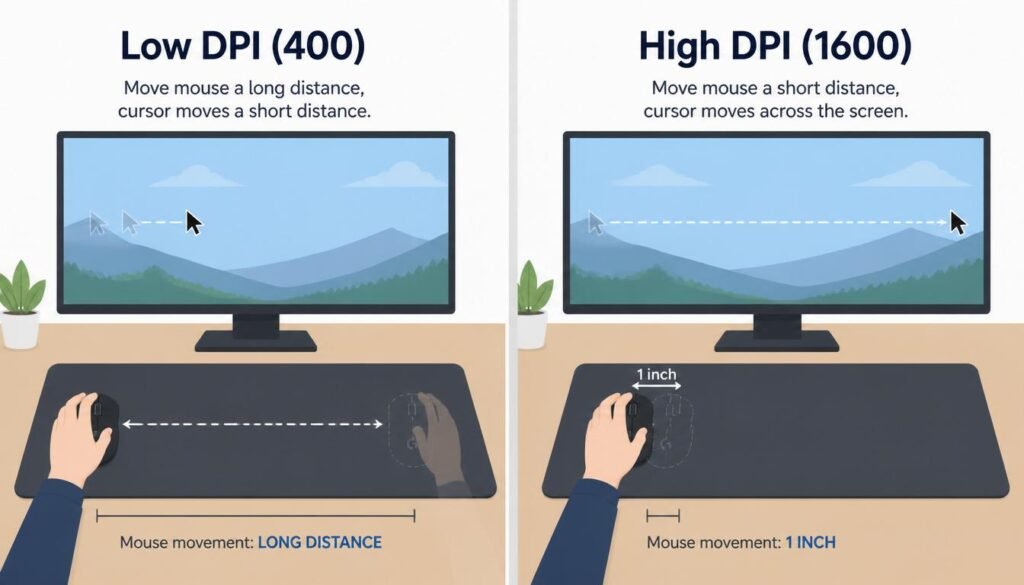
- If your mouse is set to 400 DPI, moving it one inch moves the cursor 400 pixels on your screen.
- If your mouse is set to 1600 DPI, moving it one inch moves the cursor 1600 pixels on your screen.
So, a higher DPI means the cursor travels farther with less physical movement. A lower DPI means you need to move your mouse more to get the cursor to the same spot.
🎯 Quick Answer: Mouse DPI is a number that shows how sensitive your mouse is. Higher DPI = faster cursor. Lower DPI = slower, more precise cursor.
How Does Mouse DPI Work?
To understand how mouse DPI works, it helps to know a little about what happens inside your mouse.
Modern mice have a tiny camera and a light inside. When you move your mouse, the light shines on the surface below. The camera takes hundreds of pictures every second. It compares these pictures to figure out which way you are moving.
The mouse then sends this movement data to your computer. Your computer uses the DPI setting to decide how far to move the cursor.
Think of it this way:
- The mouse sensor detects your physical movement.
- The DPI setting multiplies that movement.
- The cursor moves that many pixels on your screen.
DPI is a hardware feature of your mouse. It is different from the “sensitivity” setting in your computer’s software. Sensitivity is a software trick that changes how your computer responds to the mouse’s signals.
💡 Key Point: DPI comes from the mouse itself. Sensitivity comes from your computer or game settings. They work together but are not the same thing.
Mouse DPI vs. CPI: What’s the Difference?
You might see the term CPI instead of DPI on some mouse boxes or websites. CPI stands for Counts Per Inch.
Are they different? Not really.
Most manufacturers use DPI and CPI to mean the same thing. They both measure how sensitive your mouse is.
The only small difference is technical:
- DPI (Dots Per Inch) focuses on the cursor movement on your screen.
- CPI (Counts Per Inch) focuses on the physical movement the mouse sensor detects.
But for everyday use, you can treat them as the same. If you see one or the other, they both tell you how sensitive your mouse is.
📝 Simple Takeaway: DPI and CPI are the same thing. Don’t worry about the difference.
What is the Best DPI Setting?
Here is the truth: there is no single best DPI setting for everyone. The right setting depends on what you do and how you like to use your mouse.
But we can give you some helpful starting points.
Best DPI for Gaming
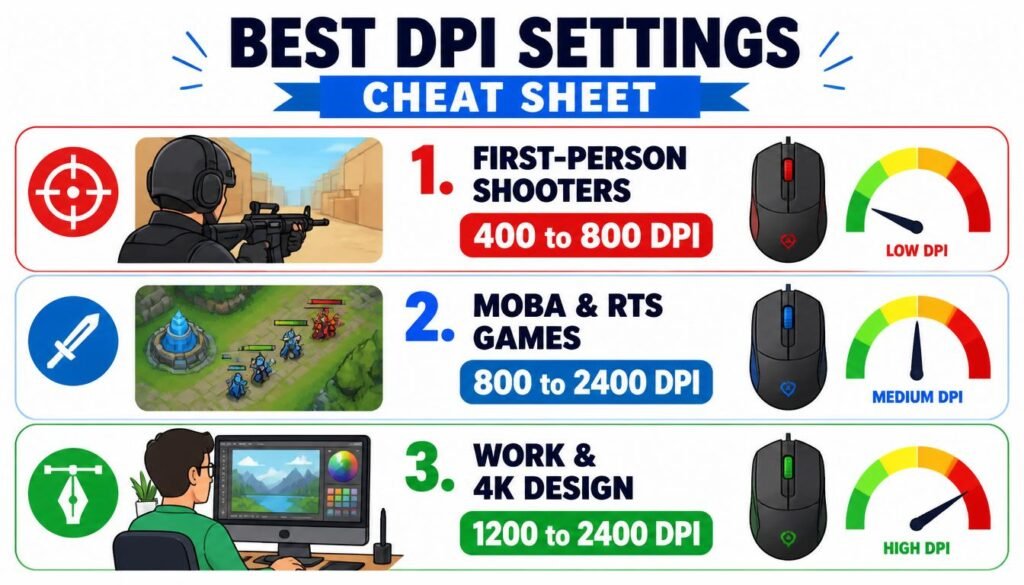
Different games work better with different DPI settings.
Most professional esports players use surprisingly low DPI settings, around 400 or 800. They move their whole arm in big, sweeping motions for better accuracy.
Best DPI for Work and Design
🎮 Pro Tip: Many gaming mice let you switch between different DPI settings with the push of a button. You can use low DPI for sniping and high DPI for running around.
How to Check Your Mouse DPI
Wondering what DPI your mouse is currently using? Here are three easy ways to check.
Method 1: Check the Manufacturer’s Website
- Find your mouse model number. You can usually find it on a sticker under the mouse.
- Go to the manufacturer’s website.
- Search for your mouse model.
- Look for the DPI (or CPI) specifications.
Method 2: Use Your Mouse Software
Most gaming mice come with special software. Here is how to check DPI there:
- Open the mouse software (like Logitech G Hub, Razer Synapse, or Corsair iCUE).
- Go to the mouse settings or DPI settings section.
- Your current DPI level should be shown clearly.
Method 3: Use an Online DPI Analyzer
You can also use free online tools. Search for “DPI analyzer” and follow the on-screen instructions. These tools measure your DPI by tracking how far your cursor moves when you move your mouse a set distance.
How to Change Mouse DPI Settings
Changing your mouse DPI is usually quick and easy. Here are the most common ways.
Option 1: Use the DPI Button on Your Mouse
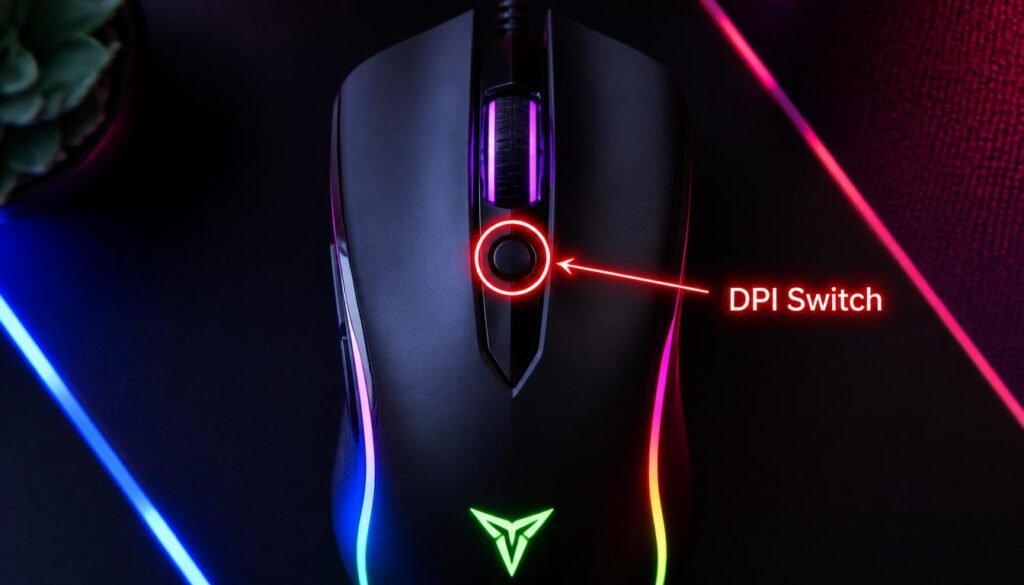
Many gaming mice have a dedicated DPI button. It is often located near the scroll wheel or on top of the mouse.
- Press the button to cycle through your preset DPI levels.
- Some mice have two buttons: one to increase DPI and one to decrease it.
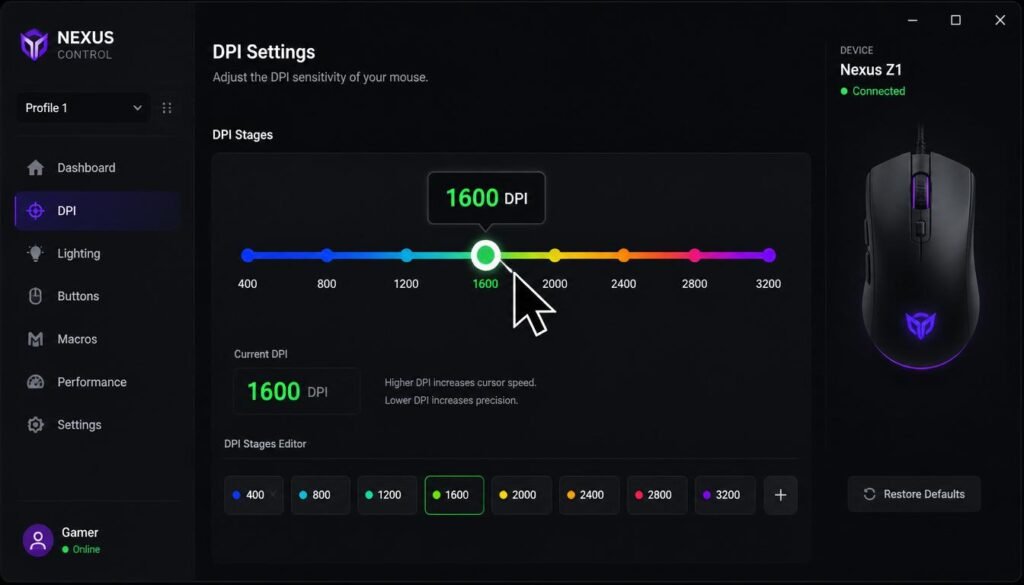
Option 2: Use Mouse Software
If your mouse does not have a DPI button, or if you want more control, use the manufacturer’s software.
- Open the software for your mouse.
- Find the DPI or sensitivity settings.
- Drag the slider to your desired DPI number.
- Some software lets you save different DPI presets.
Option 3: Use Windows Settings (Limited)
For basic mice, you can change cursor speed in Windows:
- Go to Settings > Devices > Mouse.
- Click Additional mouse options.
- Go to the Pointer Options tab.
- Adjust the pointer speed slider.
⚠️ Important: This changes your computer’s sensitivity, not your mouse’s DPI. For the best results, change DPI directly through your mouse hardware or software.
Common DPI Mistakes to Avoid
❌ Mistake 1: Thinking Higher DPI is Always Better
A very high DPI is not always useful. Most modern gaming mice have maximum DPI settings far beyond what anyone needs. A setting of 3200 DPI is enough for almost everyone.
❌ Mistake 2: Changing DPI Too Drastically
Jumping from 400 DPI to 4000 DPI overnight will feel awful. Your cursor will be way too fast. Make small changes and give yourself time to adjust.
❌ Mistake 3: Ignoring Your Monitor Resolution
Higher resolution monitors (like 4K) have more pixels. You may need higher DPI to move the cursor across the screen comfortably. Lower resolution screens work fine with lower DPI.
❌ Mistake 4: Confusing DPI with In-Game Sensitivity
DPI is a hardware setting. In-game sensitivity is a software multiplier. They work together. You can have low DPI and high in-game sensitivity, or high DPI and low in-game sensitivity. Find the combination that feels best to you.
Frequently Asked Questions
What does DPI mean on a mouse?
DPI stands for Dots Per Inch. It measures how sensitive your mouse is. A higher DPI means the cursor moves faster and farther with less physical movement.
Is higher DPI better for gaming?
Not always. It depends on the game. First-person shooters often work better with low DPI (400-800) for precise aiming. Fast-paced games may benefit from higher DPI.
What DPI should I use for gaming?
For most games, try 800 DPI as a starting point. FPS players often prefer 400-800 DPI. MOBA players often use 800-2400 DPI. Adjust from there based on your comfort.
What is the difference between DPI and sensitivity?
DPI is a hardware feature of your mouse. Sensitivity is a software setting in your computer or game. They both affect cursor speed, but they work differently.
How do I change my mouse DPI?
You can use a dedicated DPI button on your mouse (if it has one), use the manufacturer’s software, or adjust pointer speed in Windows settings.
What DPI is best for a 4K monitor?
Higher DPI works better on 4K monitors because there are more pixels on the screen. Try 1600-2400 DPI and adjust from there.
What is eDPI?
eDPI stands for effective DPI. It is your mouse DPI multiplied by your in-game sensitivity. For example, 800 DPI with 2x in-game sensitivity gives you 1600 eDPI. eDPI helps you compare your settings with other players.
Conclusion
So, what is mouse DPI? It is simply a number that shows how sensitive your mouse is. Higher DPI means faster cursor movement. Lower DPI means slower, more precise movement.
The best DPI setting depends on what you do. Gamers often use 400-800 DPI for precision. Office workers and designers often use 800-2400 DPI for a good balance. The key is to experiment and find what feels comfortable for you.
Remember these key points:
- DPI stands for Dots Per Inch.
- Higher DPI = faster cursor.
- Lower DPI = slower, more precise cursor.
- No single DPI is best for everyone.
- You can change your DPI using buttons, software, or system settings.
Start with a mid-range DPI like 800 or 1600. Use it for a few days. If it feels too fast or too slow, adjust it a little. Keep tweaking until it feels just right. That is your perfect DPI.
Have more questions about mouse Drop a comment below and we will help you out!