
Introduction
Have you ever moved your mouse just a tiny bit and watched the cursor fly across the screen? What is Mouse DPI? Or maybe you moved it a lot, and the cursor barely budged? That is mouse DPI at work.
Mouse DPI stands for Dots Per Inch. It is simply a way to measure how sensitive your mouse is. The higher the DPI, the faster your cursor moves when you move your mouse. The lower the DPI, the slower and more precise your cursor moves.
Think of it like the volume knob on your speakers. Turn it up, and everything gets louder (faster). Turn it down, and everything gets quieter (slower). Mouse DPI works the same way for your cursor.
In this guide, we will explain what is mouse DPI in plain English. You will learn how it works, how to change it, and which setting is best for you. No technical jargon. Just simple, helpful answers.
Table of Contents
What is DPI on a Mouse?
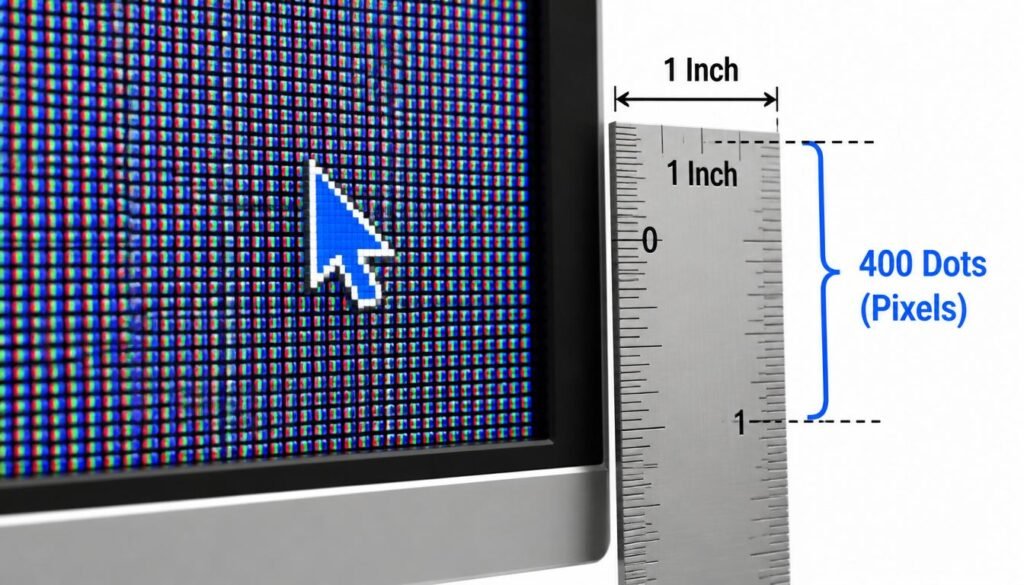
DPI stands for Dots Per Inch. It tells you how many pixels your cursor moves on the screen for every inch you move your mouse in real life.
Here is a simple example:
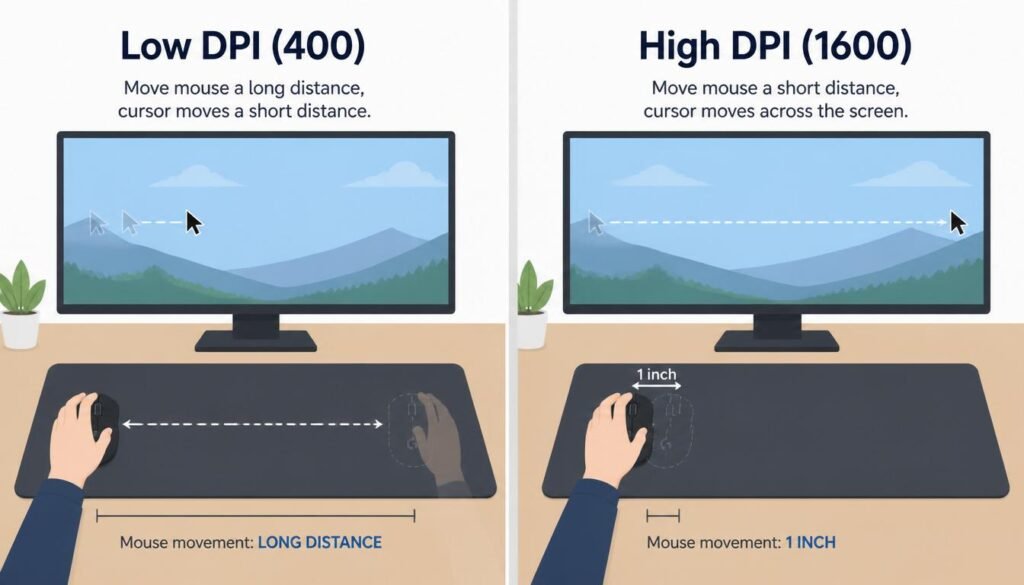
- If your mouse is set to 400 DPI, moving it one inch moves the cursor 400 pixels on your screen.
- If your mouse is set to 1600 DPI, moving it one inch moves the cursor 1600 pixels on your screen.
So, a higher DPI means the cursor travels farther with less physical movement. A lower DPI means you need to move your mouse more to get the cursor to the same spot.
🎯 Quick Answer: Mouse DPI is a number that shows how sensitive your mouse is. Higher DPI = faster cursor. Lower DPI = slower, more precise cursor.
How Does Mouse DPI Work?
To understand how mouse DPI works, it helps to know a little about what happens inside your mouse.
Modern mice have a tiny camera and a light inside. When you move your mouse, the light shines on the surface below. The camera takes hundreds of pictures every second. It compares these pictures to figure out which way you are moving.
The mouse then sends this movement data to your computer. Your computer uses the DPI setting to decide how far to move the cursor.
Think of it this way:
- The mouse sensor detects your physical movement.
- The DPI setting multiplies that movement.
- The cursor moves that many pixels on your screen.
DPI is a hardware feature of your mouse. It is different from the “sensitivity” setting in your computer’s software. Sensitivity is a software trick that changes how your computer responds to the mouse’s signals.
💡 Key Point: DPI comes from the mouse itself. Sensitivity comes from your computer or game settings. They work together but are not the same thing.
Mouse DPI vs. CPI: What’s the Difference?
You might see the term CPI instead of DPI on some mouse boxes or websites. CPI stands for Counts Per Inch.
Are they different? Not really.
Most manufacturers use DPI and CPI to mean the same thing. They both measure how sensitive your mouse is.
The only small difference is technical:
- DPI (Dots Per Inch) focuses on the cursor movement on your screen.
- CPI (Counts Per Inch) focuses on the physical movement the mouse sensor detects.
But for everyday use, you can treat them as the same. If you see one or the other, they both tell you how sensitive your mouse is.
📝 Simple Takeaway: DPI and CPI are the same thing. Don’t worry about the difference.
What is the Best DPI Setting?
Here is the truth: there is no single best DPI setting for everyone. The right setting depends on what you do and how you like to use your mouse.
But we can give you some helpful starting points.
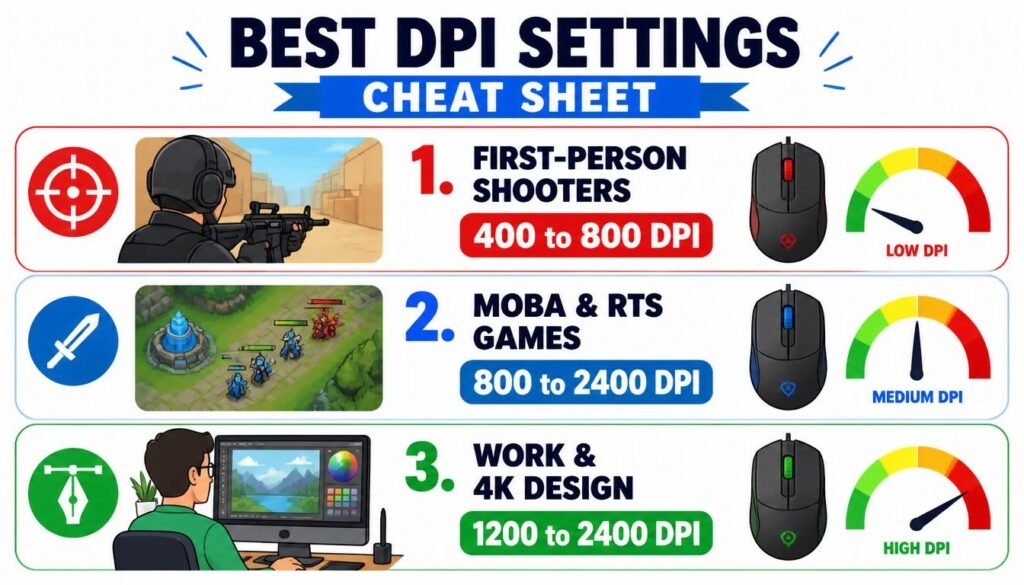
Best DPI for Gaming
Different games work better with different DPI settings.
Most professional esports players use surprisingly low DPI settings, around 400 or 800. They move their whole arm in big, sweeping motions for better accuracy.
Best DPI for Work and Design
🎮 Pro Tip: Many gaming mice let you switch between different DPI settings with the push of a button. You can use low DPI for sniping and high DPI for running around.
How to Check Your Mouse DPI
Wondering what DPI your mouse is currently using? Here are three easy ways to check.
Method 1: Check the Manufacturer’s Website
- Find your mouse model number. You can usually find it on a sticker under the mouse.
- Go to the manufacturer’s website.
- Search for your mouse model.
- Look for the DPI (or CPI) specifications.
Method 2: Use Your Mouse Software
Most gaming mice come with special software. Here is how to check DPI there:
- Open the mouse software (like Logitech G Hub, Razer Synapse, or Corsair iCUE).
- Go to the mouse settings or DPI settings section.
- Your current DPI level should be shown clearly.
Method 3: Use an Online DPI Analyzer
You can also use free online tools. Search for “DPI analyzer” and follow the on-screen instructions. These tools measure your DPI by tracking how far your cursor moves when you move your mouse a set distance.
How to Change Mouse DPI Settings
Changing your mouse DPI is usually quick and easy. Here are the most common ways.
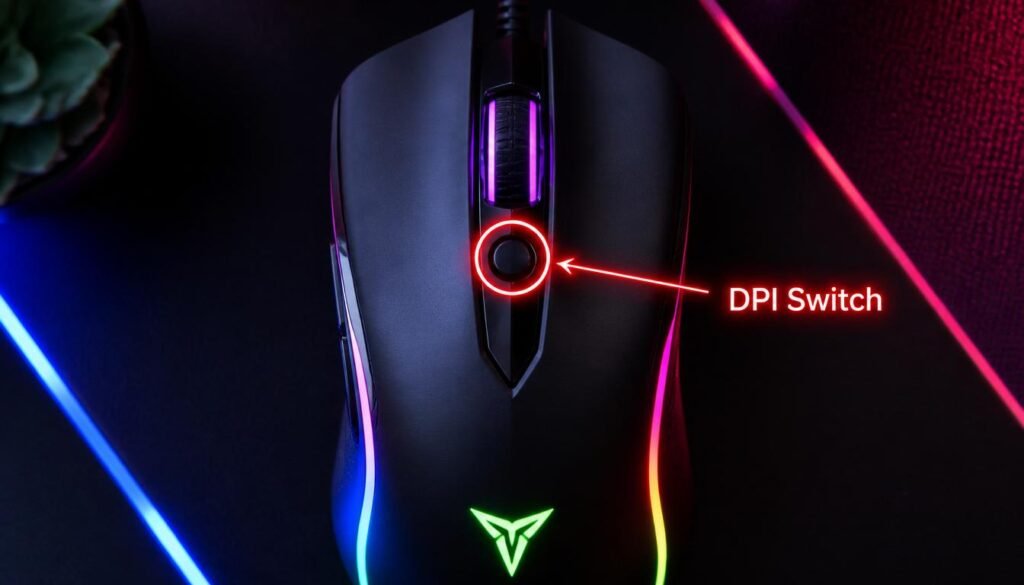
Option 1: Use the DPI Button on Your Mouse
Many gaming mice have a dedicated DPI button. It is often located near the scroll wheel or on top of the mouse.
- Press the button to cycle through your preset DPI levels.
- Some mice have two buttons: one to increase DPI and one to decrease it.
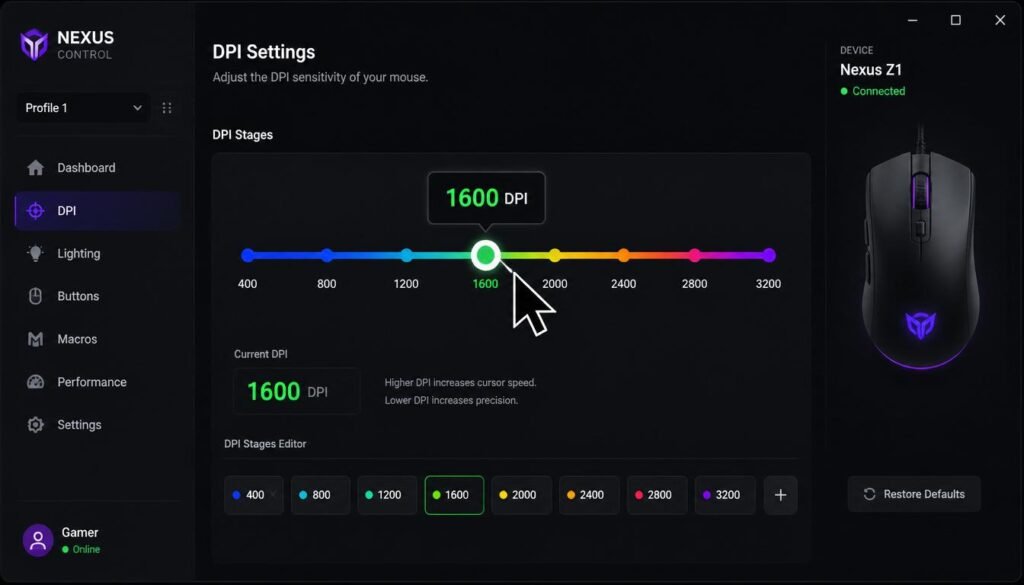
Option 2: Use Mouse Software
If your mouse does not have a DPI button, or if you want more control, use the manufacturer’s software.
- Open the software for your mouse.
- Find the DPI or sensitivity settings.
- Drag the slider to your desired DPI number.
- Some software lets you save different DPI presets.
Option 3: Use Windows Settings (Limited)
For basic mice, you can change cursor speed in Windows:
- Go to Settings > Devices > Mouse.
- Click Additional mouse options.
- Go to the Pointer Options tab.
- Adjust the pointer speed slider.
⚠️ Important: This changes your computer’s sensitivity, not your mouse’s DPI. For the best results, change DPI directly through your mouse hardware or software.
Common DPI Mistakes to Avoid
❌ Mistake 1: Thinking Higher DPI is Always Better
A very high DPI is not always useful. Most modern gaming mice have maximum DPI settings far beyond what anyone needs. A setting of 3200 DPI is enough for almost everyone.
❌ Mistake 2: Changing DPI Too Drastically
Jumping from 400 DPI to 4000 DPI overnight will feel awful. Your cursor will be way too fast. Make small changes and give yourself time to adjust.
❌ Mistake 3: Ignoring Your Monitor Resolution
Higher resolution monitors (like 4K) have more pixels. You may need higher DPI to move the cursor across the screen comfortably. Lower resolution screens work fine with lower DPI.
❌ Mistake 4: Confusing DPI with In-Game Sensitivity
DPI is a hardware setting. In-game sensitivity is a software multiplier. They work together. You can have low DPI and high in-game sensitivity, or high DPI and low in-game sensitivity. Find the combination that feels best to you.
Frequently Asked Questions
What does DPI mean on a mouse?
DPI stands for Dots Per Inch. It measures how sensitive your mouse is. A higher DPI means the cursor moves faster and farther with less physical movement.
Is higher DPI better for gaming?
Not always. It depends on the game. First-person shooters often work better with low DPI (400-800) for precise aiming. Fast-paced games may benefit from higher DPI.
What DPI should I use for gaming?
For most games, try 800 DPI as a starting point. FPS players often prefer 400-800 DPI. MOBA players often use 800-2400 DPI. Adjust from there based on your comfort.
What is the difference between DPI and sensitivity?
DPI is a hardware feature of your mouse. Sensitivity is a software setting in your computer or game. They both affect cursor speed, but they work differently.
How do I change my mouse DPI?
You can use a dedicated DPI button on your mouse (if it has one), use the manufacturer’s software, or adjust pointer speed in Windows settings.
What DPI is best for a 4K monitor?
Higher DPI works better on 4K monitors because there are more pixels on the screen. Try 1600-2400 DPI and adjust from there.
What is eDPI?
eDPI stands for effective DPI. It is your mouse DPI multiplied by your in-game sensitivity. For example, 800 DPI with 2x in-game sensitivity gives you 1600 eDPI. eDPI helps you compare your settings with other players.
Conclusion
So, what is mouse DPI? It is simply a number that shows how sensitive your mouse is. Higher DPI means faster cursor movement. Lower DPI means slower, more precise movement.
The best DPI setting depends on what you do. Gamers often use 400-800 DPI for precision. Office workers and designers often use 800-2400 DPI for a good balance. The key is to experiment and find what feels comfortable for you.
Remember these key points:
- DPI stands for Dots Per Inch.
- Higher DPI = faster cursor.
- Lower DPI = slower, more precise cursor.
- No single DPI is best for everyone.
- You can change your DPI using buttons, software, or system settings.
Start with a mid-range DPI like 800 or 1600. Use it for a few days. If it feels too fast or too slow, adjust it a little. Keep tweaking until it feels just right. That is your perfect DPI.
Have more questions about mouse Drop a comment below and we will help you out!
A Short History of Mouse DPI
Early computer mice used a rubber ball that rolled across your desk, and they had no DPI setting at all. The ball turned two small wheels inside the mouse, which counted the movement in a rough way. Those mice worked well enough for clicking menus, but they were not precise, and they needed frequent cleaning. Their effective sensitivity was low by modern standards, and they struggled on uneven surfaces.
Optical mice changed everything in the late 1990s and early 2000s. Instead of a ball, they used a light and a tiny camera to take thousands of pictures of the surface every second, then compared those pictures to work out how far the mouse had moved. Early optical mice offered around 400 DPI, which was a big step forward. Laser mice followed, offering higher DPI values and better tracking on more surfaces, including glossy ones.
Today, top gaming sensors can offer 8000 DPI or more, with some models advertising 26000 DPI and beyond. These numbers sound impressive, but they tell you more about the sensor than about what you will actually use. Most professional players still play at 400 to 800 DPI, even though their mice can reach far higher values. The history of DPI is therefore a story of limits being raised far beyond what most hands need, which is good news, because it means even an affordable modern mouse is precise enough for serious use.
Native DPI vs Interpolated DPI: An Important Difference
Not all DPI numbers are made the same way. Native DPI is the resolution the sensor itself can actually read from the surface, without any software help. If a sensor has a native range up to 8000 DPI, it can really detect 8000 counts per inch of movement. Interpolated DPI is different. It takes the real sensor reading and multiplies it in software to claim a much higher number, such as 16000 or 20000 DPI, even though the sensor itself did not see that much detail.
Interpolated DPI can make a cheap mouse look more powerful on the box, but it does not add real precision. In fact, it can add jitter, because the software is guessing the extra counts between real readings. For most users, a native DPI in the range you actually use is far more valuable than a huge interpolated maximum. Before you buy a mouse, check reviews to see whether its headline DPI number is native or interpolated, and do not pay extra for the higher number alone.
A good way to think about this is to compare it with a digital camera zoom. Optical zoom uses the lens to capture real detail, while digital zoom just enlarges the picture and guesses the missing pixels. Native DPI is like optical zoom, and interpolated DPI is like digital zoom. Both make the image bigger, but only one adds real information. If you want smooth and accurate tracking, native resolution is what matters.
DPI, Sensitivity, Polling Rate, and Acceleration: How They Fit Together
DPI is often confused with sensitivity, polling rate, and acceleration, but they are four different settings. DPI is a hardware setting that decides how many counts your mouse sends per inch of movement. Sensitivity is a software setting in Windows, macOS, or a game that multiplies those counts after they arrive. Polling rate is how often the mouse reports its position, usually 125, 500, or 1000 times per second. Acceleration changes the multiplier based on how fast you move the mouse.
Here is a practical example. If your mouse is set to 800 DPI and your game sensitivity is 1.0, you have one effective speed. If you keep the mouse at 400 DPI but raise game sensitivity to 2.0, you get the same effective speed, because 400 times 2.0 equals 800 times 1.0. This combined value is called effective DPI, or eDPI. It is the number that matters for how fast you turn in a game, and it explains why two players with different DPI values can have identical turning speeds.
Polling rate matters too, although it is less obvious. A mouse at 125 Hz reports its position 125 times per second, which can feel slightly delayed on a high refresh rate monitor. A mouse at 1000 Hz reports eight times as often, which feels smoother and more responsive. Most people should keep polling rate at 1000 Hz for gaming and 500 Hz or higher for work, and keep acceleration turned off, because acceleration makes the same hand movement produce different cursor movement depending on speed, which harms muscle memory.
DPI and Screen Resolution: Why Bigger Screens Need More DPI
Screen resolution has a direct effect on how DPI feels, because DPI is measured in pixels per inch, and higher resolution screens simply have more pixels. On a 1080p screen, 800 DPI moves the cursor quickly enough for most people, because the screen is about 1920 pixels wide. On a 1440p screen, the same 800 DPI feels a little slower, because there are 2560 pixels to cross. On a 4K screen, with 3840 pixels across, many people prefer 1200 to 1600 DPI.
Multiple monitors make the effect even stronger. If you use two 1080p monitors side by side, your cursor must cross almost 4000 pixels to get from one edge to the other. A higher DPI saves you from picking up and repositioning your mouse several times during that journey. Ultrawide monitors are similar, because their extra width means more pixels to cover with the same hand movement.
Display scaling also plays a role. If your operating system scales the display to 125 percent or 150 percent so that text is easier to read, the feeling of your DPI can change, even though the DPI number itself stays the same. The simplest way to choose is to test your setting on your own screen for a few days. Start around 800 DPI on 1080p, 1000 to 1200 on 1440p, and 1600 on 4K, then adjust in small steps until the movement feels natural.
DPI for Different Tasks: A Practical Guide
| Task | Suggested DPI | Why it works |
|---|---|---|
| Tactical shooters | 400 to 800 | Slow and steady aiming for precise headshots |
| Fast-paced shooters | 800 to 1200 | Quick turns without losing too much control |
| Strategy and MOBA games | 1000 to 1600 | Fast map movement and quick unit selection |
| Photo and video editing | 800 to 1200, lower for fine detail | Control for small adjustments and slider work |
| Office work and browsing | 800 to 1600 | Comfortable speed for menus and documents |
| Large or 4K monitors | 1200 to 2000 | More pixels to cross with each movement |
The table above is a starting point, not a rule. Your hand size, grip style, desk space, and personal preference all matter. A palm grip user who moves the mouse with the whole arm often prefers a lower DPI, because the arm gives large, smooth movements. A claw or fingertip grip user who moves mainly with the fingers often prefers a slightly higher DPI, because the fingers make small, quick adjustments. Try the suggested range for your main task, use it for several days, and change it only in small steps.
DPI and Ergonomics: Protecting Your Wrist and Arm
DPI is not only about speed and accuracy, it also affects how your body feels after a long day. A very low DPI forces you to move your arm across a large area again and again, which can tire your shoulder. A very high DPI forces you to make tiny, tense movements with your wrist, which can strain the small muscles and tendons in your hand. The best setting is the one that spreads the work between your arm and your wrist in a comfortable way.
Many ergonomics experts suggest using your arm for large cursor movements and your wrist for small, fine adjustments. A mid-range DPI, such as 800 to 1200, supports this pattern well, because it is fast enough for large movements without being so fast that small corrections become jumpy. If you notice wrist pain, try lowering your DPI a little and using your arm more, and make sure your mouse fits your hand so your wrist stays straight while you use it.
Your chair height, desk height, and mouse pad also matter. Your forearm should rest comfortably on the desk, your mouse should be close to your body, and your wrist should not bend up or down sharply. Take a short break every hour, stretch your fingers and wrists, and change your DPI if a new grip or a new mouse changes how your hand moves. A comfortable setup will help you play and work longer without pain.
How to Choose a Mouse Based on Its DPI Specifications
When you shop for a new mouse, the DPI number on the box can be confusing, because almost every modern mouse advertises a very high maximum. Focus on the sensor quality first, not the maximum DPI. Look for a well-reviewed optical sensor from a known maker, a polling rate of at least 500 Hz, and a shape that fits your hand and grip style. These factors will affect your daily comfort far more than whether the maximum DPI is 12000 or 20000.
Next, check how many DPI steps the mouse offers and whether you can adjust them. A good gaming mouse lets you set exact values, such as 400, 800, and 1600, and save them as profiles. A mouse that only offers a few fixed presets is harder to fine-tune. Also check whether the mouse stores settings on board, because on-board memory means your DPI follows the mouse to any computer, while software-only settings may need the program installed.
Finally, consider weight, shape, and battery life for wireless models. A heavier mouse can feel steadier at low DPI, while a lighter mouse can feel faster at higher DPI. Do not pay extra for an extremely high DPI number you will never use. Instead, spend your money on a comfortable shape, a reliable sensor, and a good switch quality, and use the money you save on a good mouse pad, which can improve tracking more than a higher DPI rating.
Common DPI Problems and How to Fix Them
If your cursor feels too fast, the most likely cause is simply a DPI setting that is too high for your screen or your task. Lower it by 100 or 200 at a time until small targets become easy to click. If the cursor feels too slow, raise it by the same small steps. Avoid changing DPI by thousands at once, because your hand needs time to adjust, and a huge jump will feel strange even when the new value is closer to correct.
If your cursor feels inconsistent, check for acceleration first, in Windows, macOS, and your mouse software, and turn it off everywhere. Then check your surface, because a dirty sensor, a reflective desk, or a worn mouse pad can cause skipping. Clean both the sensor and the pad, and test on a plain matte surface. If the problem continues, try a different USB port, update your mouse drivers, and test the mouse on another computer to see whether the problem follows the mouse or stays with the computer.
If your DPI keeps changing by itself, a DPI button may be pressed by accident, or a profile may be switching automatically when a game starts. Check whether your palm or fingers touch the DPI button during play, and look in your mouse software for automatic profile switching. You can often disable automatic switching or reassign the DPI button to a different function if it causes trouble.
More Frequently Asked Questions About Mouse DPI
Does a higher DPI mean a more expensive mouse is better?
No, a higher maximum DPI does not make a mouse better. Sensor accuracy, shape, weight, build quality, and polling rate matter much more. Many professional players use affordable mice at 400 to 800 DPI, and they perform better than people using far more expensive mice at 12000 DPI. Judge a mouse by how it feels in your hand, not by the biggest number on the box.
Can DPI affect my aim in games with aim assist?
Aim assist can help with small corrections, but it cannot fix a DPI setting that is far too fast or far too slow for you. Choose a DPI that lets you track a moving target smoothly, and let aim assist handle only the small final adjustments. A comfortable DPI will help your aim in every game, with or without assistance.
Does DPI work the same on Windows and Mac?
The DPI setting itself is stored on the mouse or in its software, so it is the same number on both systems. However, the way Windows and macOS handle pointer speed and acceleration is different, so the same DPI can feel slightly faster or slower when you switch systems. Recheck your pointer settings after switching, and test the mouse on the system you use most.
Is there a DPI setting that works for everyone?
No single setting works for everyone, because people have different screen sizes, desk space, hand sizes, and tasks. A good starting point is 800 DPI, because it feels balanced on most screens. From there, adjust in small steps and give each change a few days. The right DPI is the one you stop thinking about while you work and play.
Does changing DPI damage my mouse?
No, changing DPI is a normal setting change and cannot damage your mouse. You can switch DPI as often as you like. The mouse simply reads movement at a different scale. The only risk is losing track of your preferred setting, so write it down once you find a value you like.
Final Thoughts: Finding the DPI That Fits You
Mouse DPI is a simple idea with a big effect on your daily computer use. It decides how far your cursor travels for each inch you move your hand, and that simple relationship shapes your aim, your speed, and your comfort. A high DPI is not automatically better, and a low DPI is not automatically more skilled. The best setting is the one that matches your screen, your tasks, and your hand.
Start at 800 DPI, learn what it feels like, and make small adjustments from there. Pay attention to your sensor, your polling rate, and your mouse acceleration, because those settings work together with DPI. Keep your mouse and mouse pad clean, take care of your wrist, and save your favourite settings as profiles. With those habits, you will have a mouse setup that feels natural, stays consistent, and lets you focus on the game or the work in front of you instead of on the mouse itself.
Pingback: How to Test Mouse DPI in 2026: Check Your Mouse DPI Accurately -
Pingback: How to Change Mouse DPI -
Pingback: How to Check Mouse DPI Checker? -