
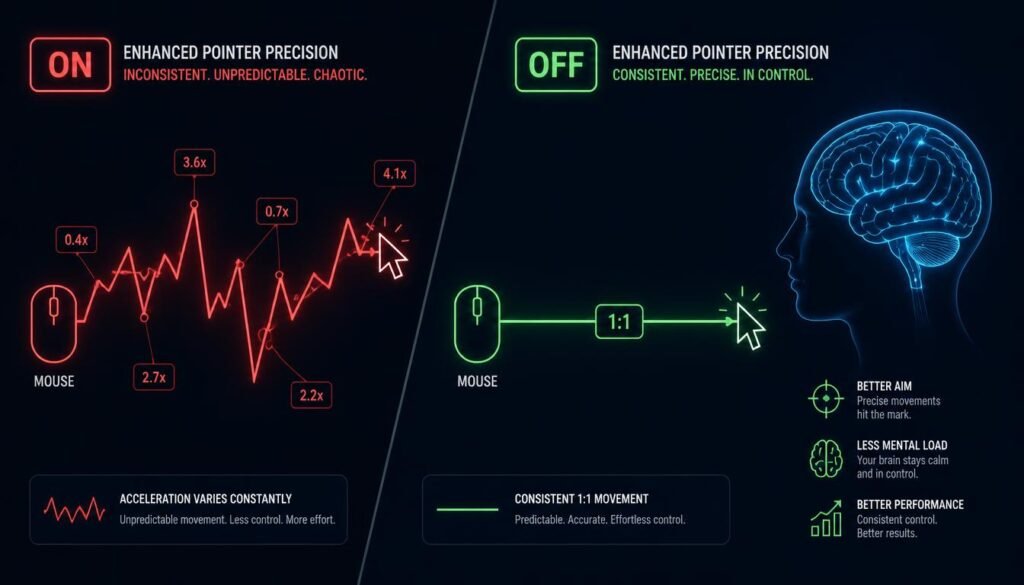
How to Turn Off Mouse Acceleration is a common question among gamers who want more precise, consistent, and predictable mouse control. Mouse acceleration changes how far your cursor moves based on how quickly you move the mouse, meaning the same physical movement can produce different on-screen results.
For gamers, this can make aiming feel inconsistent and make it harder to build reliable muscle memory. That’s why many competitive players choose to turn off mouse acceleration for a more consistent 1:1 input response, where the same mouse movement produces the same cursor distance every time. In this guide, you’ll learn how to turn off mouse acceleration on Windows and understand why disabling it can improve mouse accuracy and aiming consistency.
Table of Contents
Mouse Acceleration: ON vs. OFF The Ultimate Showdown
So, should you disable mouse acceleration? Here’s the honest truth it depends on what you do. If you’re a casual user browsing the web or working in spreadsheets, keep it on. It makes your cursor feel responsive and snappy.
But if you’re a gamer? Definitely turn it off. Mouse acceleration on vs off for gaming isn’t even a debate among pros. With it on, your aim becomes unpredictable. With it off, your brain builds muscle memory because every flick equals the same distance. That’s why why turn off mouse acceleration is such a common question in FPS communities. The answer: consistency equals accuracy. Simple as that.

How to Turn Off Mouse Acceleration in Windows 11
Let’s start with the most common request how to turn off mouse acceleration Windows 11. Microsoft calls it “Enhance Pointer Precision,” which sounds helpful, but it’s actually the culprit.
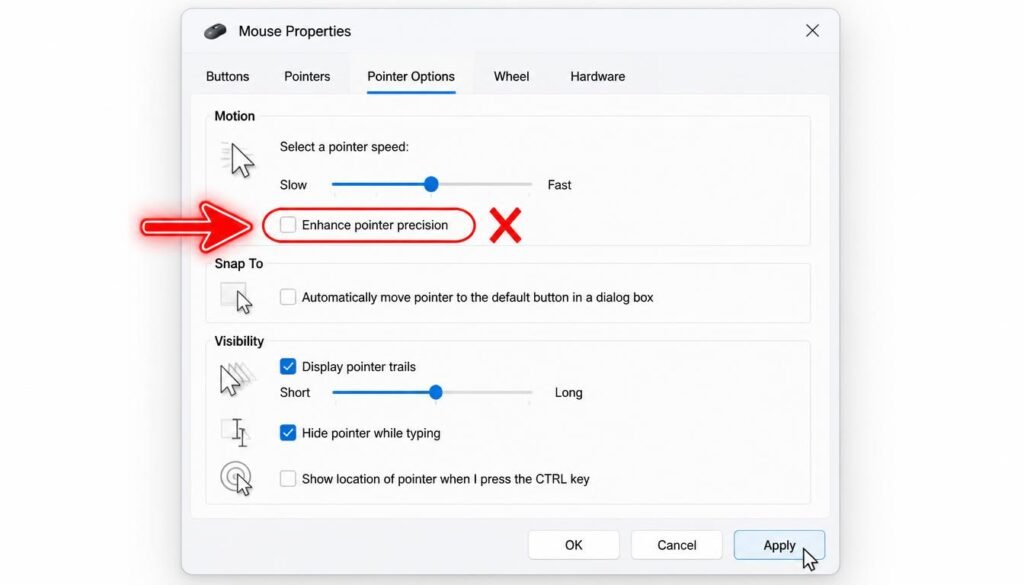
Here’s the quickest route: Open Settings > Bluetooth & devices > Mouse > Additional mouse settings. A new window pops up—click the Pointer Options tab, then uncheck “Enhance pointer precision.” Hit Apply and you’re done.
That’s it. You’ve just disabled mouse acceleration Windows 11 style. Your cursor will feel slower initially, but that’s a good sign more control awaits.
How to Disable Mouse Acceleration in Windows 10
Got Windows 10? No worries the process is nearly identical to Windows 11. The trick is still hunting down that same sneaky setting called “Enhance Pointer Precision.”
Head to the Control Panel (just search for it in your start menu). Click Mouse, then jump to the Pointer Options tab. You’ll spot a checkbox labeled “Enhance pointer precision“ uncheck it immediately. Hit Apply and OK.
That’s all it takes to disable mouse acceleration Windows 10. Your cursor will feel a bit heavier, but trust the process that’s precision replacing unpredictability.
How to Turn Off Mouse Acceleration in Windows 7 & 8.1
Yes, we haven’t forgotten you. Many budget gamers still rock Windows 7 or 8.1, and the fix is just as simple.
Open the Control Panel and click Mouse. Navigate to the Pointer Options tab. You’ll see that familiar checkbox labeled “Enhance pointer precision” uncheck it. Click Apply, then OK.
That’s how you turn off mouse acceleration Windows 7 and 8.1. The setting hides in the same spot across all older versions. Your aim will thank you, even if your operating system feels a bit outdated.
The Registry Edit: Permanently Disable Acceleration (Windows)
Want to make sure acceleration never comes back? Time for the mouse acceleration registry edit. This is the nuclear option that overrides everything else.
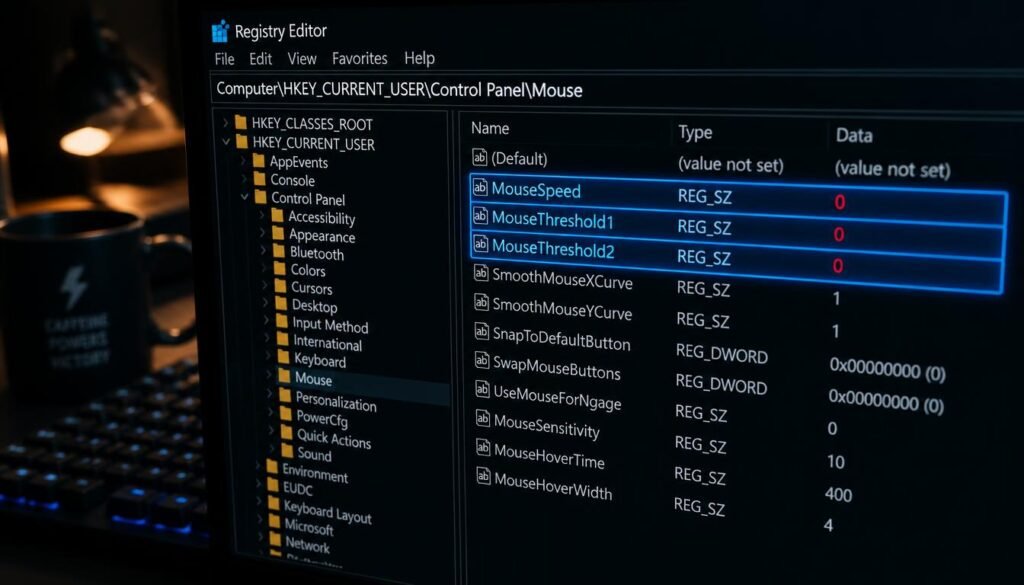
Press Win + R, type regedit, and hit Enter. Navigate to HKEY_CURRENT_USER\Control Panel\Mouse. Find MouseSpeed, MouseThreshold1, and MouseThreshold2. Double-click each and set their value to 0.
That’s the MouseThreshold1 MouseThreshold2 registry fix a permanent kill switch. Even if Windows updates try to revert things, this keeps acceleration disabled for good.
Disable Acceleration via PowerShell / CMD
For the tech-savvy crowd, here’s a faster way. Open Command Prompt or PowerShell as Administrator.
Paste this command and hit Enter:
text
reg add "HKEY_CURRENT_USER\Control Panel\Mouse" /v MouseSpeed /t REG_SZ /d 0 /f
reg add "HKEY_CURRENT_USER\Control Panel\Mouse" /v MouseThreshold1 /t REG_SZ /d 0 /f
reg add "HKEY_CURRENT_USER\Control Panel\Mouse" /v MouseThreshold2 /t REG_SZ /d 0 /f
That’s the disable mouse acceleration via CMD Windows method in seconds. No clicking through menus just pure command-line efficiency for power users who value speed.
How to Turn Off Mouse Acceleration on Mac (macOS)
Mac users, you’re not off the hook. Apple hides acceleration behind a friendlier name—”Pointer acceleration.”
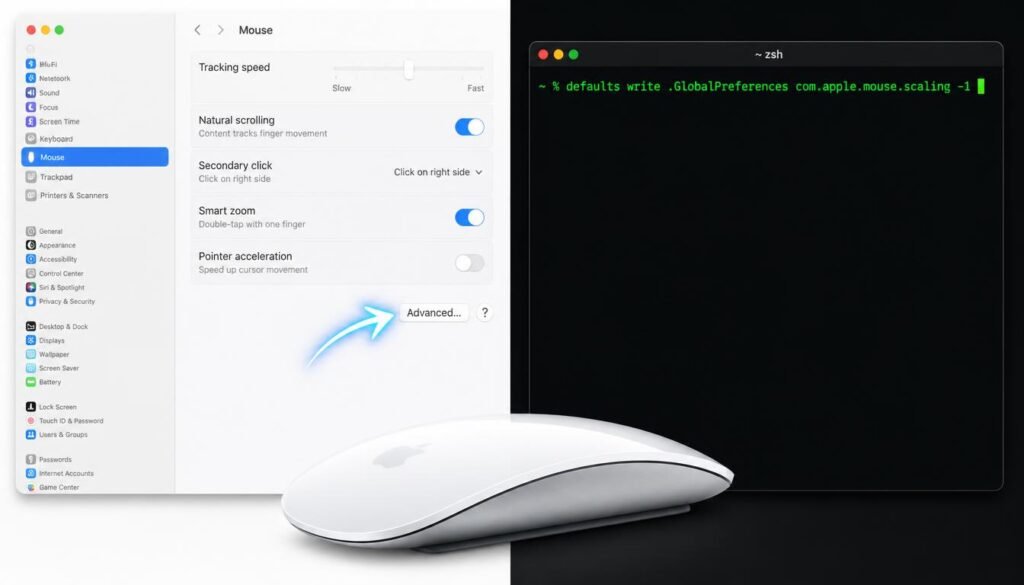
For the GUI method: Open System Settings > Mouse > Advanced > toggle off “Pointer acceleration.” That’s the quickest disable mouse acceleration Mac fix.
Prefer the Terminal? Type this:
text
defaults write .GlobalPreferences com.apple.mouse.scaling -1
That’s the terminal mac disable acceleration command. For trackpad users, follow the same steps in Trackpad settings. Now your Mac cursor moves exactly as you move your hand.
How to Disable Mouse Acceleration on Linux (GNOME / Ubuntu)
Linux users, this one’s for you. The fix varies by desktop environment, but for GNOME (the most popular), it’s dead simple.
Open your Terminal and paste this command:
text
gsettings set org.gnome.desktop.peripherals.mouse accel-profile 'flat'
That’s it. You’ve just disabled mouse acceleration Linux Ubuntu style. The “flat” profile tells your system to stop speeding up your cursor based on movement speed.
For other environments like KDE or Xorg, check your system settings under Mouse—you’ll find similar acceleration options to toggle off.
How to Turn Off Mouse Acceleration on Steam Deck
Steam Deck users, listen up. Your handheld runs Linux, so the fix mirrors the GNOME method.
Switch to Desktop Mode (hold the Power button and select it). Open System Settings > Mouse > Acceleration Profile > select Flat.
That’s the steam deck mouse acceleration fix—no more unpredictable cursor jumps when docked with a mouse.
Alternatively, open Konsole (Terminal) and run:
text
gsettings set org.gnome.desktop.peripherals.mouse accel-profile 'flat'
Now your disable mouse acceleration steam deck is complete. Perfect for precise aiming in docked gaming sessions.
How to Disable Mouse Acceleration on ChromeOS
Chromebook users, we haven’t forgotten you. More people are plugging external mice into their Chromebooks than ever before, and acceleration can throw off your precision.
Open Settings > Device > Mouse. You’ll see a toggle labeled “Mouse acceleration” —simply turn it off.
That’s the entire disable mouse acceleration ChromeOS process—literally one click. No hidden menus, no registry edits, no Terminal commands. Just a simple toggle.
If you use a touchpad, the same setting applies. Now your Chromebook cursor moves predictably, whether you’re editing documents or casually gaming.
Disable Mouse Acceleration In-Game (Valorant, CS2, Apex, Fortnite, Overwatch 2)
Here’s a pro tip: many games have a Raw Input setting that bypasses Windows entirely. For disable mouse acceleration Valorant, head to Settings > Controls > enable “Raw Input Buffer.” In CS2, it’s under Keyboard/Mouse options. Mouse acceleration settings CS2 are famously off for consistency.
For Apex, Fortnite, and Overwatch 2, search for “Raw Input” in advanced mouse settings. Enabling this overrides all Windows acceleration, giving pure, unfiltered 1:1 movement regardless of your OS.
Disable Acceleration in Gaming Mouse Software (Razer, Logitech, SteelSeries, Corsair)
Your gaming mouse software might be secretly re-enabling acceleration. Don’t let it.
In Razer Synapse, open your mouse profile, go to Performance, and disable “Acceleration.” For Logitech G Hub, check your mouse settings and turn off “Angle Snapping” and pointer acceleration. SteelSeries GG users can find acceleration toggles under Engine settings. And in Corsair iCUE, look for pointer acceleration under the DPI settings tab.
That’s the razer synapse mouse acceleration disable fix in action. Always double-check these—your software should help, not hurt, your aim.
My Mouse Feels Slow After Turning Off Acceleration How to Fix It
Feeling that sluggish cursor? Don’t panic that’s actually proof your fix worked. Without acceleration boosting your speed, you’re now getting raw, honest movement.
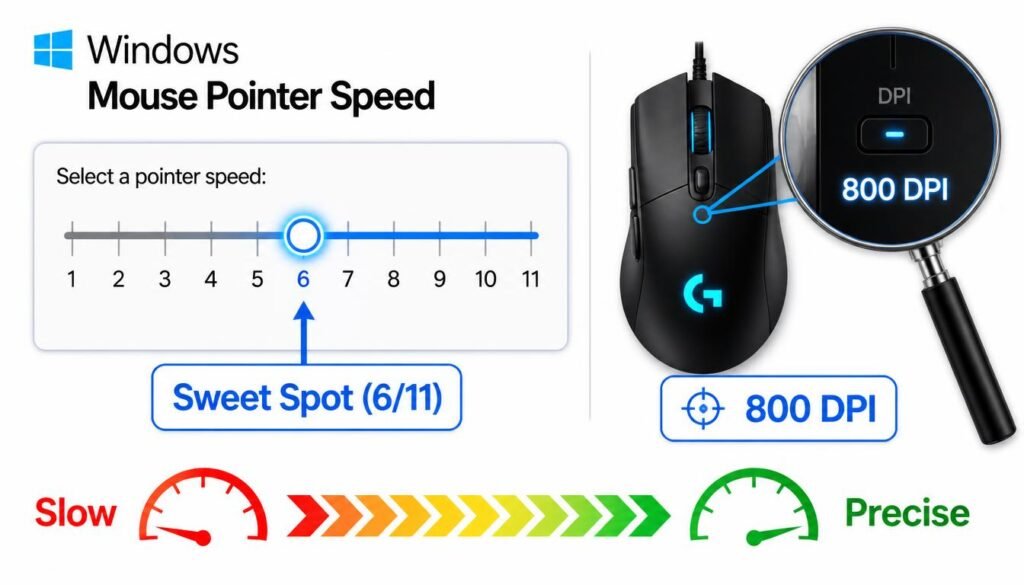
Here’s the pro fix: open Windows Settings > Bluetooth & devices > Mouse > adjust the “Mouse pointer speed” slider. Set it to the 6th notch (dead center) that’s the sweet spot for 1:1 movement.
Then adjust your mouse DPI via your gaming software. Most pros use 400–800 DPI. That’s the best dpi for gaming range. Now your mouse feels slow after turning off acceleration? Not anymore. Precision restored.
Frequently Asked Questions
1. Is Enhance Pointer Precision the same as mouse acceleration?
Yes exactly the same. Microsoft just uses a friendlier name. When you uncheck “Enhance pointer precision,” you’re effectively disabling mouse acceleration in Windows. Don’t let the different name confuse you.
2. Does turning off mouse acceleration improve FPS?
No. It doesn’t affect your frame rate at all. However, it dramatically improves your aiming consistency, which matters far more than FPS in competitive shooters. Think accuracy over frames.
3. Should I disable mouse acceleration for work or general use?
Probably not. For everyday browsing, spreadsheets, or design work, acceleration helps your cursor feel snappy and responsive. Keep it on for work, turn it off for gaming. Context matters.
4. Why does my mouse feel slower after turning off acceleration?
Because you’re no longer getting a speed boost from fast flicks. That slowness is actually accuracy. To fix it, adjust your mouse pointer speed slider to the 6th notch and increase your mouse DPI via your gaming software.
5. Why does mouse acceleration keep turning back on?
Common culprits: Windows updates, peripheral software overriding settings, or driver reinstalls. The permanent fix is the registry edit set MouseSpeed, MouseThreshold1, and MouseThreshold2 to 0. That locks it for good.
6. Do I need to disable Windows acceleration if I use Raw Input in games?
Yes. While Raw Input bypasses Windows for that specific game, some older titles and launchers still use Windows settings. Disable it at the OS level anyway it guarantees consistency across every application.
7. What’s the difference between DPI, sensitivity, and acceleration?
DPI is hardware how many pixels your mouse reports per inch. Sensitivity is software scaling. Acceleration is dynamic speed-scaling. Pro tip: keep DPI fixed (400–800), adjust sensitivity in-game, and always turn acceleration off.
8. Does mouse acceleration affect trackpads too?
Yes. On laptops, acceleration applies to both trackpads and external mice. On Mac, you’ll find the toggle in Trackpad settings. On Windows, the same “Enhance pointer precision” checkbox affects both devices simultaneously.
9. Should I turn off mouse acceleration on console or controller?
No this setting only applies to mice. Consoles use joystick aim assist, which works completely differently. This guide is strictly for PC, Mac, Linux, and Chromebook mouse users.
10. What’s the best DPI for gaming after disabling acceleration?
Most pros use 400 800 DPI. This range gives you precise control without being too twitchy. Pair it with the Windows pointer speed at the 6th notch (middle), then fine-tune your in-game sensitivity to taste.
Final Verdict: Turn It Off for Gaming, Keep It On for Everything Else
So, should I disable mouse acceleration? Here’s the bottom line. If you’re a gamer chasing consistency, absolutely turn it off. Your muscle memory will thank you. If you’re just browsing or working, leave it on.
We’ve covered every platform—Windows, Mac, Linux, Steam Deck, even ChromeOS. Now you know exactly how to turn off mouse acceleration wherever you play.
Take control of your cursor. Build predictable aim. And remember precision beats speed every single time. Happy gaming.
What Mouse Acceleration Actually Does, Step by Step
Mouse acceleration is not a bug or a mistake. It was designed in the days of small screens and low-resolution ball mice, when a user needed to move the cursor across the whole display without dragging the mouse across a large desk. The idea was simple: move the mouse slowly and the cursor creeps across the screen for precise work, but flick the mouse quickly and the cursor jumps a much larger distance, so you can reach the far corner without lifting your hand. That trade-off made sense for office work, but it breaks the one thing competitive gaming depends on, which is a fixed, repeatable relationship between your hand and the crosshair. With acceleration on, the same physical movement can send your crosshair to two different places depending on how fast you moved, so your muscle memory never gets a consistent signal to learn.
Windows applies acceleration through a pointer ballistics curve that changes the multiplier based on the speed of the mouse. At slow speeds the multiplier is close to one to one, so the cursor moves as far as your hand does. As the speed increases, Windows passes through thresholds and applies larger multipliers, which is why a fast flick travels much further than a slow drag of the same distance. The pointer speed slider in Windows does not change this curve, it only scales the overall sensitivity, so a player who lowers the slider without turning off Enhance Pointer Precision will still have acceleration, just at a slower overall speed. That is the most common source of confusion about this setting, and it explains why some players think they have disabled acceleration when the checkbox is still ticked.
Why Acceleration Ruins Muscle Memory
Muscle memory works by repetition, and your brain learns a movement by practising the same motion and seeing the same result hundreds of times. When acceleration is on, the result changes every time, because the speed of your hand varies slightly from one attempt to the next even when you are trying to repeat the same flick. You might land a flick perfectly in one round and overshoot the same target in the next, not because your hand changed but because you moved a fraction faster. Over weeks of play, that inconsistency makes it impossible to build the automatic, thought-free aim that separates good players from great ones. Turning acceleration off does not make your aim instantly better, but it makes every hour of practice count, because each repetition teaches your brain a movement that will behave the same way next time.
The effect is easiest to see in games that demand long, precise flicks, such as sniping in a tactical shooter or tracking a distant target in a battle royale. In those moments, the difference between a hit and a miss is a few pixels, and a speed-based multiplier can easily add or remove those pixels without you realising it. Players often blame their sensitivity or their mouse when their flicks are inconsistent, and they spend weeks adjusting settings that were never the problem. A simple test can settle the question: if your flicks are sometimes short and sometimes long with the same hand movement, acceleration is the first thing to check before you touch anything else.
How to Test Whether Acceleration Is Really Off
Turning off a checkbox is one thing, but confirming that acceleration is truly gone takes a quick test, and it is worth doing because several layers of software can add it back. The simplest test needs only a ruler and a game or desktop. Put your cursor on a fixed mark, move the mouse ten centimetres to the right very slowly, and note where the cursor stops. Then move the cursor back to the start, move the mouse the same ten centimetres to the right very quickly, and compare the stopping point. If acceleration is off, both movements should end in the same place. If the fast movement travels further, acceleration is still active somewhere in the chain, even if the Windows checkbox is unticked.
A more precise test uses a free tool such as MouseTester, which records the counts your mouse sends and plots them against the cursor movement. With acceleration off, the plot should form a straight line, because each count from the mouse moves the cursor by the same amount. With acceleration on, the line curves upwards at higher speeds, showing exactly where the multiplier kicks in. This kind of evidence is useful when you suspect a driver or a piece of mouse software is quietly re-enabling acceleration, because the plot shows the problem even when every visible setting claims to be correct. Run the test after any driver update or Windows update, because those are the moments when a setting can silently change.
You can also test inside a game by using the practice range as a laboratory. Pick a fixed target, place your crosshair on a starting point, and flick to the target first slowly and then quickly, using the same distance each time. If the crosshair lands in the same place both times, your in-game acceleration is off and raw input is working correctly. If the quick flick overshoots, check the game settings again for any hidden acceleration option, and confirm that raw input is enabled, because some games have their own acceleration setting that is separate from Windows. Write down the result of each test so you can compare it later, especially if you change mice or reinstall a game and need to verify the setup again.
Acceleration in Popular Games: Where Raw Input Hides
Every game handles mouse input slightly differently, which is why a Windows fix alone is not always enough. In Valorant, raw input is handled automatically by the game, but you should still check that the in-game sensitivity you choose is measured after turning off Windows acceleration, because your old sensitivity was probably compensating for the boost without you realising it. In Counter-Strike 2, the raw input setting sits in the keyboard and mouse options, and it should be enabled alongside the Windows fix, because the game will otherwise blend Windows settings with its own. Players who switch from one game to another often carry the same sensitivity with them, but the two games can feel completely different if one is using raw input and the other is not, so check each game separately rather than assuming they match.
Apex Legends and Fortnite add another layer, because both games include an ADS sensitivity multiplier that changes your turn speed when you aim down sights. If the hip-fire sensitivity feels right but ADS feels wrong, the problem may not be acceleration at all, but a multiplier that was tuned while acceleration was still on. Fix the Windows and raw input settings first, then retune the ADS multiplier from scratch using the same slow and fast flick test. Overwatch 2 uses a similar structure, and it also offers a relative sensitivity option for scoped heroes, which needs to be tested separately because the zoom changes how far the crosshair moves for the same hand movement. Call of Duty players should look in the controller and mouse settings for any aim assist or smoothing option that behaves like acceleration, because that setting can override the Windows fix in ways that are not obvious from the menu name.
When Mouse Acceleration Can Actually Help
It is easy to treat acceleration as the enemy, but there are situations where it is the right tool for the job. For everyday desktop work, acceleration saves time and effort, because it lets you cross a large monitor or a multi-monitor setup with a small mouse movement, then slow down for precise clicks on small buttons. Graphic designers and video editors often keep acceleration on for their work applications, because they need to move across a large canvas quickly and then make fine adjustments, and a 1:1 setting would force them to lift and reposition the mouse constantly. Trackball users also benefit, because the ball has a small range of motion and acceleration extends its reach in a way that feels natural.
Some people with limited mobility or a small desk also rely on acceleration to use a computer comfortably, because a 1:1 setting would demand large arm movements they cannot make easily. For those users, the consistency that gamers prize is less important than being able to reach every part of the screen without strain. The practical solution is to use separate profiles for work and gaming if your mouse software supports them, or to accept acceleration for desktop use and rely on raw input inside games, which bypasses Windows for the game itself. The key is to choose deliberately for each task, rather than leaving one setting for everything and wondering why neither task feels right.
Acceleration On vs Off: A Clear Comparison
| Factor | Acceleration On | Acceleration Off |
|---|---|---|
| Cursor travel for the same movement | Changes with hand speed | Always the same |
| Muscle memory | Hard to build, inconsistent | Reliable and repeatable |
| Crossing a large screen | Fast and easy | Needs more mouse movement or higher DPI |
| Precise aiming in games | Unpredictable flicks | Predictable flicks |
| Desktop and office work | Comfortable and efficient | Can feel slow on big monitors |
| Best for | General use, design work, small desks | Competitive gaming, consistent aim |
Use this table when you are deciding whether to keep acceleration off for everything or only for gaming, because the answer depends on how you use your computer. If you only play games on the machine, turning it off everywhere is the simplest choice and removes any chance of a game accidentally picking up the Windows setting. If you also use the computer for work, study, or design, you may prefer to keep acceleration on for the desktop while trusting raw input in your games, and that combination works well for many players. What matters is that you know which mode you are in and that you have tested it, rather than leaving the setting to chance.
Why Acceleration Keeps Turning Back On
One of the most frustrating experiences in gaming is discovering that acceleration has quietly returned after a Windows update, a driver update, or a new mouse installation. Windows updates can reset mouse settings to their defaults, especially the major feature updates that reinstall parts of the operating system. Mouse software updates can do the same, because a fresh installation of G Hub, Synapse, or iCUE may apply its own defaults, including an acceleration setting you thought you had disabled. A new mouse can also bring a different default profile, so plugging in a replacement mouse is a good moment to recheck every setting rather than assuming it matches the old one.
The fix is to build a small routine around updates. After any Windows update, check the Enhance Pointer Precision checkbox before your next gaming session, because it takes ten seconds and saves hours of confused aim. After a mouse software update, open the profile, confirm that acceleration is still off, and save the profile to onboard memory again. If the checkbox keeps re-enabling itself without an update, look for a third-party utility or a Windows setting that is syncing mouse preferences, and check the registry values for MouseSpeed and the two MouseThreshold entries, because a program can set those values directly. Keeping a written record of your settings makes this check quick, and it stops a silent reset from becoming a week of bad aim.
Retraining Your Aim After Turning Acceleration Off
Your aim will feel strange for the first few days after disabling acceleration, and that is normal, because your hands have been compensating for the speed boost for years. The most useful thing you can do is to recalibrate your sensitivity before you judge the change, because a sensitivity that felt right with acceleration on will often feel too slow or too fast with it off. Spend ten minutes in a practice range doing slow, deliberate flicks to large targets, then gradually increase the speed until your flicks are landing cleanly at normal pace. Keep a note of the sensitivity that feels right at the end of the week, because it may be different from the number you started with, and it is the number your hands actually trust.
Give the new setting at least two weeks of regular play before you decide whether it works, because the first week is dominated by unlearning old habits rather than by the quality of the new setup. Play casual modes and deathmatch during this period instead of ranked matches, so a temporary dip in performance does not cost you rank or confidence. After two weeks, compare your results with the same drills you used before the change: flick accuracy, tracking time on a moving target, and how often you overshoot. Most players find that their results improve steadily during the second week, and that improvement continues for months, because they are finally practising with a consistent, repeatable input.
More Questions About Mouse Acceleration
Does disabling acceleration change my DPI or sensitivity?
Disabling acceleration does not change your DPI or your in-game sensitivity number, but it changes how those numbers feel, because the speed-based boost is gone. A sensitivity that relied on fast flicks to cover extra distance may now feel slower, especially for large turns, and you may need to raise it slightly to restore the same cm/360 feel. Measure your cm/360 before and after the change so you can compare like with like, and adjust in small steps of five to ten percent until the movement feels familiar again. Do not raise DPI instead of sensitivity without thinking, because a higher DPI with a lower in-game value gives smoother micro-adjustments than a low DPI with a high in-game value.
Can I use a custom acceleration curve instead of turning it fully off?
Advanced players sometimes use tools such as Raw Accel or the MarkC fix to build a custom curve that adds a small, controlled boost at high speeds while keeping low-speed movement perfectly 1:1. This can work, but it requires careful tuning and testing, and it reintroduces some of the unpredictability that turning acceleration off was meant to remove. For most players, a straight 1:1 setup is simpler and more reliable, and custom curves are best left to players who have already tried 1:1 for several weeks and understand exactly which part of their aim they want to change. If you do experiment, save your original settings first so you can return to them in one click.