
Introduction
You’re not alone if your mouse feels off. If you’re searching for How to Fix Mouse Sensitivity: The Ultimate Guide, you’ve come to the right place. Whether clicks aren’t registering or you’re dealing with accidental double clicks, the frustration is real. Everyday tasks become a chore when your mouse click sensitivity isn’t working properly.
But here’s the thing—most people confuse two completely different issues. Click sensitivity usually refers to how your mouse buttons respond to presses. Pointer speed controls how fast the cursor moves across your screen.
This guide will help you fix both. We’ll walk through how to adjust mouse click sensitivity in Windows 11 and Windows 10, plus cover Mac and Linux solutions. Whether you’re a gamer needing precise control or just want your mouse to feel normal again, you’ll find the answers here. Let’s get your mouse back to working the way it should.
Table of Contents
Quick Fixes (The TL;DR)
If you’re in a hurry, try these quick fixes first:
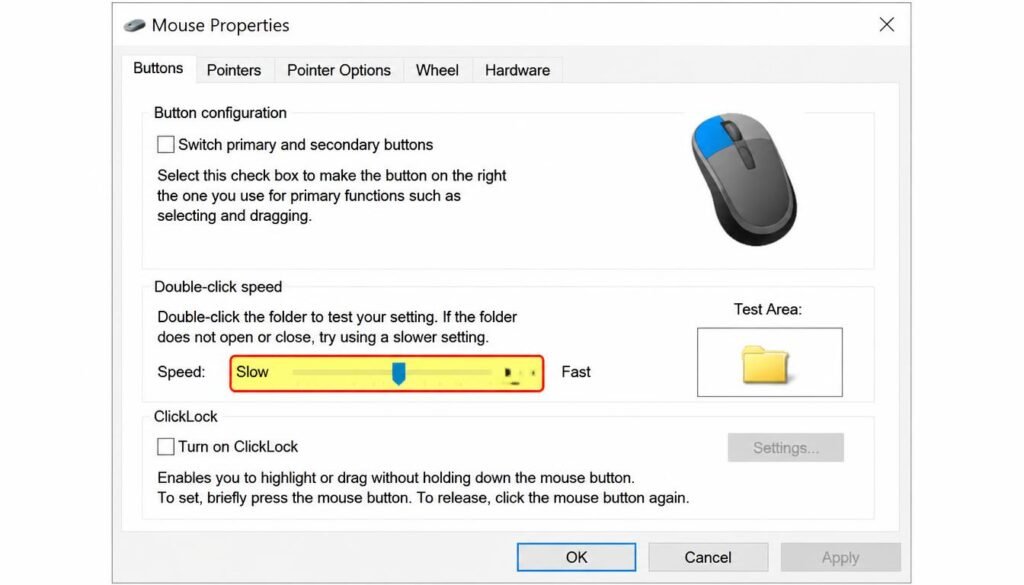
- Adjust double-click speed – Open Mouse Properties > Buttons tab > move the slider.
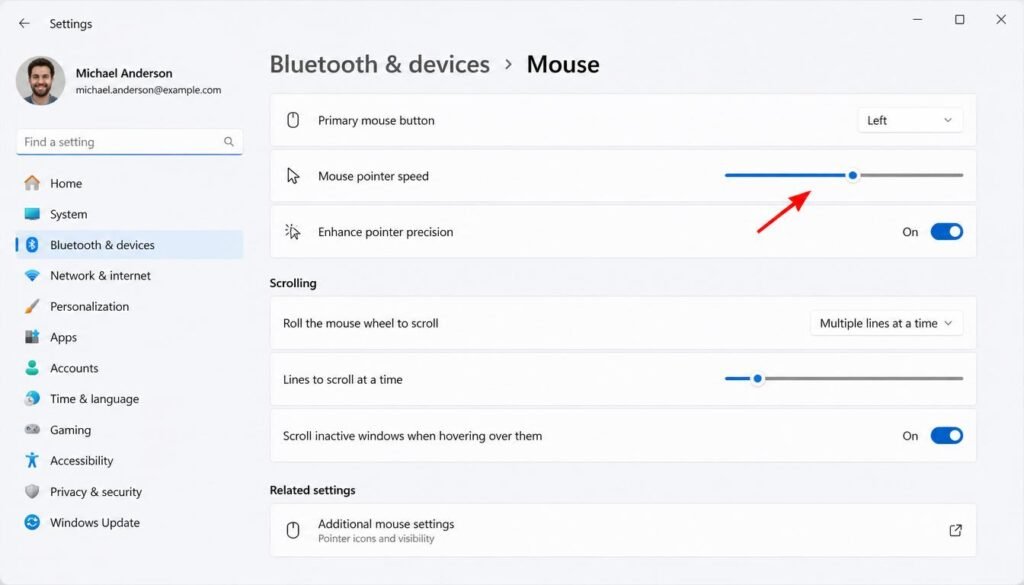
- Adjust pointer speed – Go to Settings > Bluetooth & devices > Mouse > Pointer speed.
- Disable “Enhance pointer precision” – This stops erratic cursor movement.
Still having issues? Test your mouse on another computer to rule out hardware failure. For gaming mice, check your DPI settings in manufacturer software.
These quick adjustments solve most click sensitivity problems in Windows 11 and Windows 10.

Adjust Double Click Speed (Windows)
If clicks aren’t registering, the double-click speed slider is your first stop.
Open the Mouse Properties window by searching “Mouse settings” in the Start menu. Click Additional mouse options, then the Buttons tab. Move the double-click speed slider left for slower response or right for faster clicks.
Use the Test Area folder to test your settings. Double-click the folder icon—if it opens or closes correctly, you’ve found the sweet spot. Also, disable ClickLock if enabled, as it can interfere with normal clicking behavior.
Adjust Pointer Speed (Windows)
Pointer speed affects cursor movement, not button clicks. But many users mistakenly adjust this when trying to fix click sensitivity.
Windows 11: Go to Settings > Bluetooth & devices > Mouse. Drag the Pointer speed slider to your preference.
Windows 10: Open Settings > Devices > Mouse > Additional mouse options > Pointer Options tab.
Here’s a pro tip: uncheck Enhance pointer precision. This disables mouse acceleration, giving you more predictable cursor movement. For gaming, set Windows pointer speed to 6/11 for 1:1 input.
Mac & Linux Solutions
Windows isn’t the only OS with click issues. Here’s how to fix mouse click sensitivity on other platforms.
MacOS: Open System Settings > Accessibility > Pointer Control. Adjust the double-click speed slider. For pointer speed, go to Mouse & Trackpad and fine-tune the tracking slider.
Linux (Ubuntu): Open Settings > Mouse & Touchpad. Adjust the double-click speed under the General tab. For pointer acceleration, toggle it off for smoother movement.
These OS-specific adjustments solve most sensitivity problems, just like their Windows counterparts.
Hardware & Driver Troubleshooting
Sometimes software tweaks aren’t enough. Hardware issues can mimic click sensitivity problems.
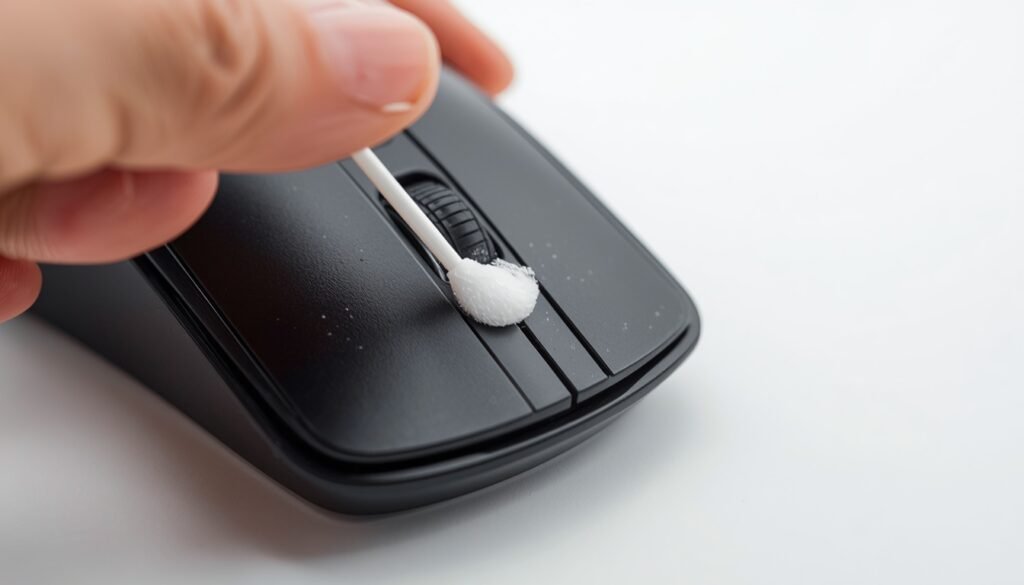
Start by cleaning your mouse button—dust and debris often cause missed clicks. Try a different USB port or test your mouse on another computer. If it works elsewhere, your PC may need a mouse driver update.
Right-click the Start menu > Device Manager > Mice and other pointing devices. Right-click your mouse > Update driver. For gaming mice, check manufacturer software for firmware updates. If nothing works, it might be time to replace your mouse.
Advanced Settings (For Gamers)
Gamers demand precision. Fine-tuning your mouse sensitivity settings can give you a competitive edge.
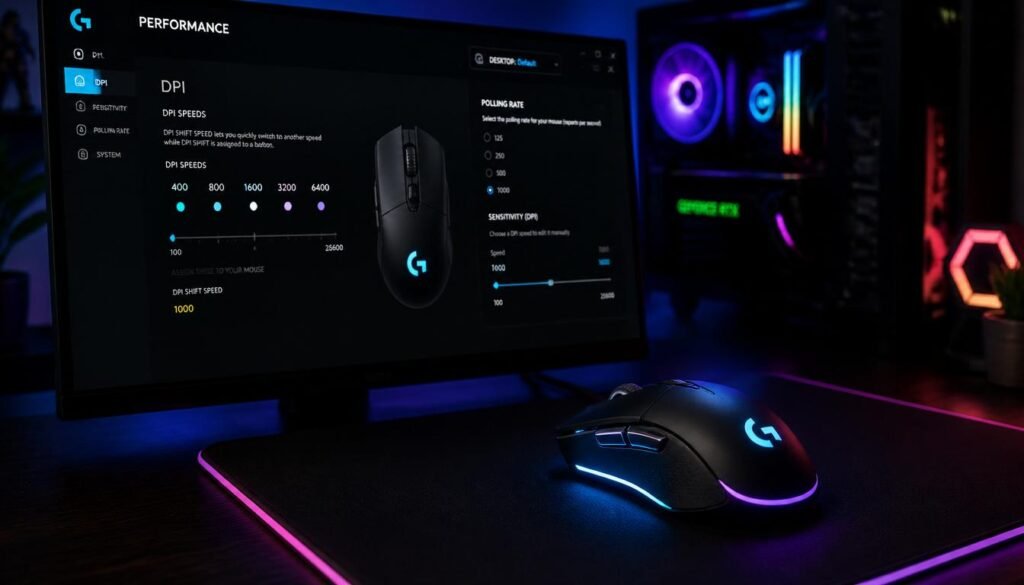
Start with DPI settings in your manufacturer software (Logitech G Hub, Razer Synapse, etc.). Lower DPI offers better aim control; higher DPI suits fast-paced games.
Adjust polling rate to 1000Hz for minimal input lag. Enable raw input to bypass Windows pointer processing. Also, ensure mouse smoothing is disabled—it adds artificial delay.
These advanced tweaks eliminate erratic movement and deliver the consistent, responsive clicks every gamer needs.
Accessibility & Ergonomics
Not everyone experiences mouse sensitivity the same way. Users with hand tremors or limited dexterity may need specialized settings.
Windows offers accessibility features to help. Open Settings > Accessibility > Mouse pointer and touch. Adjust the double-click speed slider to a slower setting for easier clicking. Enable ClickLock to drag items without holding the button down.
For ergonomic comfort, consider a vertical mouse or trackball to reduce hand strain. Proper mouse sensitivity settings prevent fatigue during long work sessions.
When to Replace Your Mouse
Sometimes no amount of tweaking can fix a failing mouse. Here’s when to call it quits.
If you’ve adjusted double-click speed, updated drivers, cleaned the button, and tested on another computer—yet clicks still don’t register—hardware failure is likely.
Look for physical wear: sticky buttons, broken scroll wheels, or frayed cables. Gaming mice with worn switches often develop persistent double-clicking issues.
A new mouse costs less than hours of frustration. If basic fixes haven’t worked, replace your mouse and save yourself the headache.
Frequently Asked Questions
Why is my mouse double-clicking when I single click?
This usually means your double-click speed is set too fast or your mouse switch is worn out. Try slowing the slider first.
What’s the difference between pointer speed and click sensitivity?
Pointer speed controls cursor movement. Click sensitivity affects button response. Many users confuse these two settings.
Can gaming mouse software help?
Yes. Tools like Logitech G Hub let you fine-tune DPI and polling rate for precise control.
Can I fix mouse sensitivity without installing software?
Yes. Most fixes use built-in Windows settings. Adjust the double-click speed slider in Mouse Properties or change pointer speed in Settings. No third-party software is needed. For advanced tweaks, gaming mice often require manufacturer software, but basic sensitivity adjustments are built right into your operating system.
Why does my mouse feel sluggish after a Windows update?
Windows updates can sometimes reset your pointer speed or double-click speed settings. They may also install generic drivers that override manufacturer settings. Simply revisit your mouse settings and reapply your preferred adjustments. If issues persist, consider rolling back the mouse driver update through Device Manager.
Does mouse pad surface affect click sensitivity?
No. Your mouse pad affects cursor tracking and sensor accuracy, not click sensitivity. However, a poor surface can cause erratic cursor movement, which many mistakenly blame on click issues. For optical sensors, use a non-reflective surface. For laser mice, almost any surface works, but a quality pad improves overall performance.
How do I fix double-clicking on a Mac?
Open System Settings > Accessibility > Pointer Control. Adjust the double-click speed slider to a slower or faster setting. You can also enable “Spring-loading” to adjust click behavior. If the problem persists, test your mouse on another Mac to determine if the issue is hardware-related.
Can dirty mouse buttons cause click sensitivity issues?
Absolutely. Dust and debris can prevent the button switch from making proper contact, causing missed clicks or unintended double-clicks. Turn off your mouse, use compressed air or a cotton swab with rubbing alcohol to clean your mouse button carefully. Let it dry completely before testing again.
What is the best DPI setting for gaming?
There’s no single best DPI—it depends on personal preference and game type. Most pro gamers use 400-800 DPI for first-person shooters (better aim control) and 1600+ DPI for real-time strategy games (faster cursor movement). Experiment with your DPI settings in manufacturer software to find what feels natural.
Does “Enhance pointer precision” help or hurt?
It hurts if you want consistent, predictable cursor movement. This feature applies mouse acceleration, making cursor speed depend on how fast you move your mouse. For gaming or precise work, disable Enhance pointer precision in the Pointer Options tab. For general office use, leave it enabled if it feels comfortable.
Can I adjust mouse sensitivity through Windows Registry?
Yes, advanced users can. Navigate to HKEY_CURRENT_USER\Control Panel\Mouse and modify the MouseSensitivity value. However, this is risky. Incorrect changes can cause erratic behavior. Stick to the standard mouse settings unless you’re comfortable with Registry edits. Always back up before making changes.
Why is my mouse click not registering in games but works elsewhere?
Games often use raw input to bypass Windows settings. If your mouse works on the desktop but not in games, check the game’s mouse sensitivity settings. Adjust DPI, polling rate, and in-game sensitivity sliders. Also, ensure mouse smoothing and acceleration are disabled for consistent response.
How do I fix mouse sensitivity on Linux?
Open Settings > Mouse & Touchpad. Adjust the double-click speed slider under the General tab. For pointer acceleration, toggle it off. You can also use terminal commands for advanced adjustments. Install gnome-tweaks for additional mouse settings not available in the default interface.
Should I buy a new mouse or keep fixing mine?
If your mouse is over three years old and you’ve tried all software fixes, upgrading is often cheaper than continued frustration. Look for wear on buttons, scroll wheel, and cable. If the persistent double-clicking issues won’t resolve and cleaning doesn’t help, it’s time to replace your mouse.
Can Bluetooth cause click sensitivity problems?
Yes. Bluetooth interference or low battery can cause delayed or missed clicks. Try using the mouse closer to the receiver, replace batteries, or switch to a wired connection to test. If the problem disappears, it’s a wireless issue. Consider using a different USB port or updating Bluetooth drivers.
What’s the difference between polling rate and DPI?
DPI (dots per inch) controls cursor speed—how far the cursor moves when you move your mouse. Polling rate controls how often the mouse reports its position to your computer (measured in Hz). Higher polling rates (1000Hz) reduce input lag. Both affect overall mouse performance and should be adjusted together.
Conclusion
Fixing mouse click sensitivity doesn’t have to be complicated. Start with the basics—adjust double-click speed, tweak pointer speed, and disable enhance pointer precision. If software tweaks fail, move to hardware troubleshooting like cleaning your mouse button or updating drivers.
For gamers, fine-tuning DPI and polling rate delivers the precision you need. And if nothing works, don’t hesitate to replace your mouse.
Your mouse should work for you, not against you. Apply these fixes and enjoy a smooth, responsive experience.