
Introduction
Have you ever wondered why your cursor moves too fast or too slow? How to Check Mouse DPI Checker?The answer is your mouse DPI. Knowing how to check mouse DPI checker is a skill that every computer user should have. Whether you play video games, design graphics, or just browse the web, understanding your mouse DPI can make a big difference.
In this guide, we will show you simple ways to check your mouse DPI. You don’t need to be a tech expert. We will explain everything in plain English. By the end of this article, you will know exactly how to check mouse DPI checker using five different methods.
Table of Contents
What is Mouse DPI?
DPI stands for Dots Per Inch. It measures how sensitive your mouse is. Think of it like this: when you move your mouse one inch on your desk, the cursor moves a certain number of pixels on your screen. That number is the DPI.
A higher DPI means your cursor moves faster and covers more screen space with less physical movement. A lower DPI means your cursor moves slower and gives you more control.
Here is a simple breakdown:
- Low DPI (400-800): Great for precise aiming in games like CS:GO or Valorant
- Medium DPI (800-1600): Good for everyday tasks and general use
- High DPI (1600+): Best for fast movements and large monitors
Some people also call this CPI (Counts Per Inch). It means the same thing.

Why Should You Check Your Mouse DPI?
Knowing your mouse DPI helps you in many ways:
- Improve gaming accuracy: You can set the perfect sensitivity for games like Fortnite, CS:GO, and Valorant
- Keep consistency across games: When you know your DPI, you can use the same settings in every game
- Boost work performance: Designers and editors benefit from precise cursor control
- Compare different mice: You can match settings when switching between devices
- Troubleshoot issues: If your cursor feels off, checking your DPI can help you fix it
Method 1: Check Using Mouse Driver Software
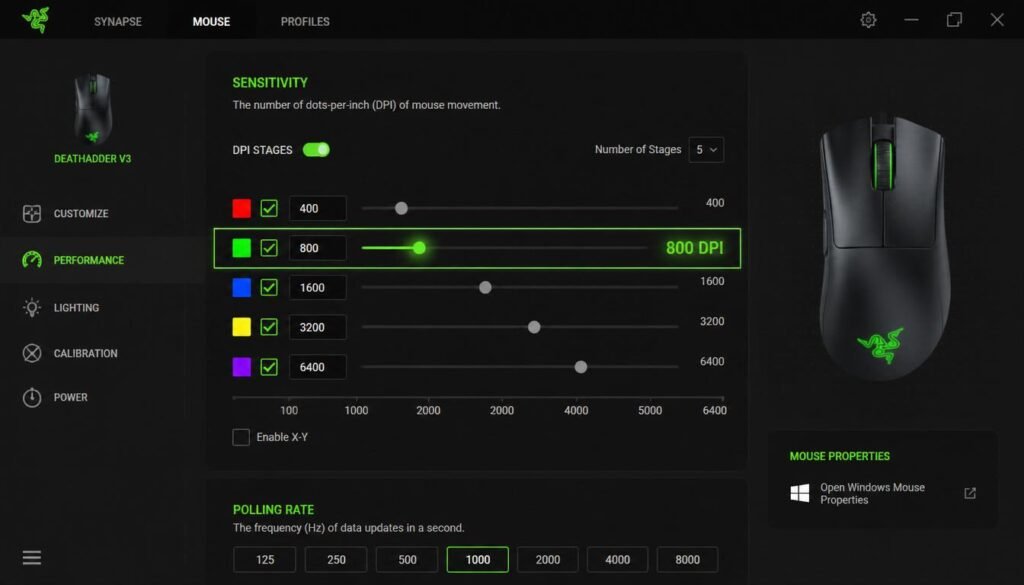
Most gaming mice come with special software. This is the easiest way to check your mouse DPI.
Step-by-step instructions:
- Find the software for your mouse brand. Common ones include:
- Logitech G Hub
- Razer Synapse
- SteelSeries Engine
- Corsair iCUE
- Open the software on your computer.
- Look for your mouse in the device list.
- Find the section labeled “DPI Settings” or “Sensitivity”.
- Your current DPI will be displayed there. You can also change it from this screen.
This method works for most modern gaming mice. If you don’t have gaming mouse software, try the next method.
Method 2: Check Product Specifications Online
If you don’t have the software, you can look up your mouse model online.
Here is how:
- Check the bottom of your mouse for the model number.
- Open your web browser and search for “[Your Mouse Model] DPI”.For example: “Logitech G502 DPI”
- Visit the manufacturer’s website or trusted review sites.
- Look for the “Specifications” or “Tech Specs” section.
- Find the DPI range listed there.
You can also check the original packaging or the user manual that came with your mouse.
Method 3: Use an Online DPI Analyzer Tool
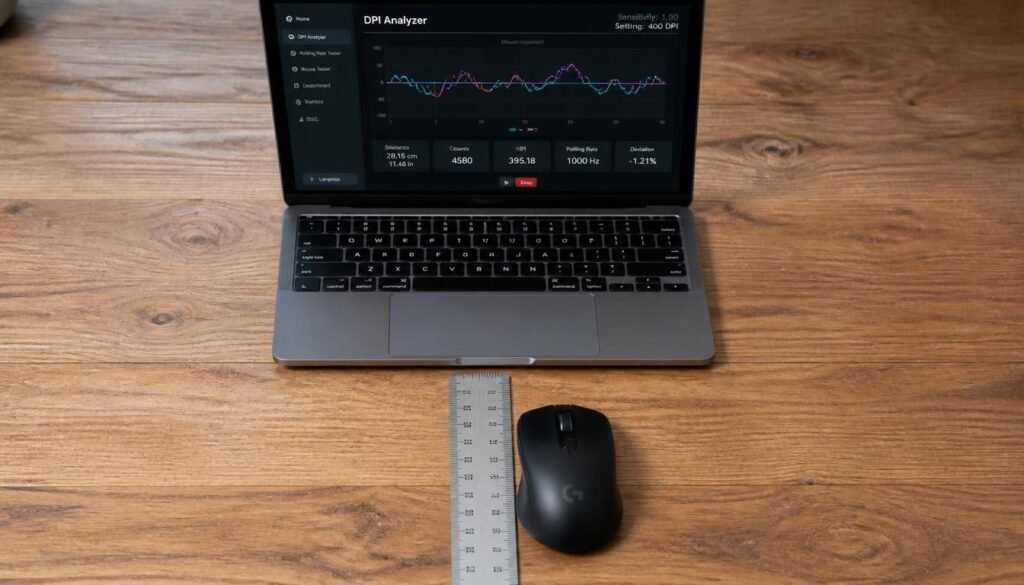
Online DPI analyzers are free and work with any mouse. This is one of the most popular ways to check mouse DPI checker.
How to use a DPI analyzer:
- Go to a trusted DPI analyzer website like:
- Select your measurement unit (inches, centimeters, or millimeters).
- Place a ruler on your desk next to your mouse.
- Enter the distance you plan to move your mouse (like 1 inch or 2 inches).
- Click and hold the mouse button.
- Move your mouse the exact distance you entered on the ruler.
- The tool will calculate your DPI based on how far the cursor moved.
Important tip: Measure the actual physical movement of your mouse on your desk, not the cursor movement on your screen.
This method gives you a real-world measurement of your mouse’s actual DPI, which may differ from the advertised specs.
Method 4: Check in Windows Mouse Settings
Windows has built-in mouse settings, but they don’t show the exact DPI number. Instead, they show a sensitivity slider.
For Windows 10/11:
- Press Windows + R to open the Run dialog box.
- Type main.cpl and press Enter.
- Go to the Pointer Options tab.
- Look at the “Select a pointer speed” slider.
- The slider has 11 levels. Each level roughly corresponds to a DPI multiplier.
However, this method does not show your actual DPI number. It only adjusts sensitivity. For the exact number, use one of the other methods.
Method 5: Manual Measurement Method
If you cannot use any other method, you can calculate your DPI manually.
What you need:
- A ruler
- Your mouse
- A piece of paper
Steps:
- Place your mouse on a clean surface.
- Mark a starting point on your desk or paper.
- Open a paint program or any blank screen.
- Move your mouse exactly 1 inch (or 2 inches) from the starting point.
- Count how many pixels your cursor moved on the screen.
- Divide the number of pixels by the inches you moved.
For example, if your cursor moved 800 pixels in 1 inch, your DPI is 800.
This method takes more effort but works for any mouse.
How to Change Your Mouse DPI
Once you know your DPI, you might want to change it. Here is how:
Using mouse software:
- Open your mouse’s driver software
- Find the DPI settings
- Drag the slider to your preferred DPI
- Save your changes
Using a DPI button:
- Many gaming mice have a DPI button on top
- Press it to cycle through preset DPI levels
- Look for a light or indicator that shows the current level
Using Windows settings:
- Go to Mouse Properties > Pointer Options
- Adjust the pointer speed slider
- Remember: this is not as precise as using dedicated software
Common Mistakes to Avoid
When you check your mouse DPI, watch out for these common errors:
Mistake 1: Confusing DPI with sensitivity
DPI is a hardware setting. Sensitivity is a software setting. They work together but are not the same.
Mistake 2: Not using a ruler for manual testing
Guessing the distance will give you wrong results. Always use a ruler.
Mistake 3: Moving the mouse too fast or too slow
For accurate results, move your mouse at a normal, steady speed.
Mistake 4: Forgetting to check the DPI button
Some mice have a dedicated DPI button. Pressing it changes your DPI without warning.
Mistake 5: Relying only on Windows settings
Windows doesn’t show your exact DPI. Use dedicated tools for accurate numbers.
Frequently Asked Questions (FAQ)
What is a mouse DPI checker?
A mouse DPI checker is a tool that measures your mouse’s sensitivity. It tells you how many pixels your cursor moves for every inch you move your mouse.
How do I check my mouse DPI without software?
You can check your mouse DPI without software by using an online DPI analyzer or by manually measuring the cursor movement with a ruler.
How do I check my mouse DPI in Windows 10?
Windows 10 does not show your exact DPI number. You can check the pointer speed in Mouse Properties, but for the exact DPI, use your mouse’s software or an online tool.
How to check mouse DPI on Mac?
On a Mac, go to System Preferences > Mouse > Point & Click. Adjust the tracking speed, then use an online DPI analyzer for exact numbers.
Is higher DPI always better?
No. Higher DPI is not always better. It depends on what you are doing. Gamers often prefer lower DPI for precision. Casual users may prefer higher DPI for speed.
Can I check mouse DPI online for free?
Yes. Many free online DPI analyzers work right in your browser. You don’t need to download or install anything.
What DPI should I use for gaming?
Most professional gamers use between 400 and 800 DPI. This gives them better control and precision for aiming.

Conclusion
Knowing how to check mouse DPI checker is a valuable skill. Whether you use driver software, an online DPI analyzer, or manual measurement, you now have five different methods to find your mouse DPI.
Remember these key points:
- DPI stands for Dots Per Inch and measures mouse sensitivity
- Higher DPI = faster cursor movement
- Lower DPI = more precision and control
- Use a DPI analyzer for the most accurate results
- Check your mouse software for easy DPI settings
Now it’s your turn. Pick one method from this guide and check your mouse DPI today. Your gaming, design work, or everyday computing will thank you for it.
How a DPI Checker Actually Works
A DPI checker may look like a simple web page, but it is doing a careful measurement behind the scenes. Your mouse sensor counts tiny movements as you slide it across your desk, and it sends those counts to your computer many times per second. The browser watches how far the on-screen cursor moves while you drag, and it compares that distance with the real distance you told it you moved. When those two numbers are combined, the tool can work out your DPI.
To understand this, imagine moving your mouse exactly one inch. If the cursor moves 800 pixels on screen, your mouse is reporting 800 counts per inch, so your DPI is 800. If it moves 1600 pixels, your DPI is 1600. The checker does the same sum automatically, which is why it needs an honest measurement of the distance you moved. A wrong distance entry, a curved movement, or a lift of the mouse will all change the result.
Most online checkers also rely on the browser’s mouse events, which report cursor movement in whole pixels. That means very short test distances can be less accurate, because rounding to the nearest pixel is a bigger share of a small total. Using a longer distance, such as two inches instead of one, gives the tool more data to work with and reduces rounding error. It is also why repeating the test several times and looking at the average is much more reliable than trusting a single run.
Types of DPI Checkers Compared
Not all DPI checkers work in the same way, and each type has its own strengths. Online DPI analyzers run in your browser, need no installation, and work on almost any computer. Manufacturer software reads the setting directly from your mouse and is usually the most accurate, but it only works with that brand of mouse. Manual measurement with a ruler and a drawing program is slow, but it works for any mouse, even one with no software at all.
| Checker type | Accuracy | Best for | Drawbacks |
|---|---|---|---|
| Online DPI analyzer | Good, if used carefully | Quick checks on any computer | Sensitive to acceleration and scaling |
| Manufacturer software | Very high | Gaming mice with official software | Only works for one brand |
| Manual ruler test | Good, with practice | Any mouse, including old office mice | Slow and easy to measure wrong |
| DPI button presets | Shows preset only | Quick switching between settings | Does not show the exact number |
| Product specifications | Shows range only | Finding the maximum DPI | Does not show your current setting |
For the best result, use two methods together. Check the number in your mouse software if you have it, then confirm it with an online analyzer. If both give the same value, you can trust it. If they disagree, the online test was probably affected by acceleration, display scaling, or a measuring mistake, and you should repeat it after fixing those settings. This cross-check only takes a few extra minutes and removes most of the guesswork.
Step-by-Step: Getting an Accurate Result From an Online DPI Checker
Before you open a DPI checker, set up your desk properly. Close any game or program that changes mouse sensitivity, and set your browser zoom to 100 percent, because browser zoom can change how far the cursor appears to move. Turn off mouse acceleration in your operating system, and set display scaling to 100 percent if you can. These four steps are the most common reason for wrong results, and they only take a minute to check.
Next, prepare your measuring tools. Place a ruler flat on your desk beside your mouse pad, and use small strips of tape to mark a clear start line and a finish line exactly two inches apart. Open the DPI checker, enter two inches as your target distance, and place your mouse at the starting line. Hold the mouse button down if the tool asks you to, then move the mouse in one smooth straight line to the finish line and release the button.
Write down the result, then repeat the whole test three more times without changing any setting. If the numbers agree within a small range, take the average as your DPI. If one result is very different from the others, ignore it and test again. A single bad run is usually caused by starting slightly before the line, stopping slightly after it, or lifting the mouse during the movement, and it does not mean the tool is broken.
What Your DPI Checker Result Means
A DPI checker result is only useful if you know how to read it. A result of 800 DPI means your cursor moves 800 pixels for every inch you move your mouse, if sensitivity is set to normal. A result of 400 DPI means the same inch of movement covers only 400 pixels, so the cursor feels slower and more controlled. Neither number is good or bad on its own. The right value depends on your screen size, your game, and how much desk space you have.
Pay attention to how close your result is to a round number. Gaming mice are usually set to values such as 400, 800, 1200, 1600, or 3200 DPI, so a result of 795 or 812 almost certainly means your mouse is set to 800 DPI, and the small difference comes from measurement error. If your result is 1375 when you expected 1600, however, something is wrong, and you should check acceleration, scaling, and your ruler before trusting the number.
Also remember that your DPI checker measures the combination of your mouse DPI and your software sensitivity. If your Windows pointer speed is not at the middle notch, your measured value will be your hardware DPI multiplied by the Windows multiplier. To find your true hardware DPI, set pointer speed to the middle position, which is the sixth of eleven notches, before you test.
DPI Checker vs DPI Tester vs eDPI Calculator: What Is the Difference?
The names sound similar, but these three tools do different jobs. A DPI checker or DPI analyzer measures your current DPI by watching how far your cursor moves when you move your mouse a set distance. A DPI tester is often the same kind of tool under a different name, although some testers focus on checking whether the sensor is skipping or smoothing rather than on the exact number.
An eDPI calculator does a different job entirely. It takes your DPI and multiplies it by your in-game sensitivity to give you your effective DPI. This lets you compare settings between players who use different DPI values. For example, a player at 800 DPI with a sensitivity of 1.0 has the same eDPI as a player at 400 DPI with a sensitivity of 2.0, and both will have the same turning speed in the game. Use a checker to find your DPI, then use an eDPI calculator to carry that setting between games.
Factors That Affect DPI Checker Accuracy
Several things can make a DPI checker give a wrong number, and most of them are easy to fix once you know about them. Mouse acceleration is the biggest one. When acceleration is turned on, the cursor moves further when you move the mouse quickly, and less far when you move it slowly. A DPI checker assumes a fixed relationship between hand movement and cursor movement, so acceleration breaks that assumption completely. Always turn it off before testing.
Display scaling is the second major factor. If your operating system scales everything to 125 percent or 150 percent to make text bigger, the cursor may move a different number of physical screen pixels than the checker expects. Browser zoom has a similar effect. Set scaling to 100 percent and browser zoom to 100 percent for the test, then return them to your normal settings afterwards.
Your mouse surface also matters more than most people expect. A dirty sensor, a reflective desk, a glass surface, or a worn mouse pad can cause the sensor to skip counts or read the same movement twice. Clean the sensor lens gently with a dry cloth, wipe the mouse pad, and test on a plain, matte surface. If you use a wireless mouse, a low battery or a receiver that is far away can also cause inconsistent results, so move the receiver closer and charge the mouse before you test.
Finally, watch out for software running in the background. Some mouse programs apply their own acceleration or sensitivity curves, and some games change sensitivity while they are open, even in the background. Close those programs before testing, and restart your computer if results still look strange. A clean test environment is the difference between a useful measurement and a random number.
Using DPI Checkers With Different Types of Mice
Gaming mice are the easiest to check, because most of them have official software and DPI buttons with clear presets. You can read the setting in the software, confirm it with an online checker, and set up a separate profile for each game. Many gaming mice also store settings in on-board memory, so the same DPI follows the mouse to another computer. If the software says 800 DPI but the checker says something very different, check whether the on-board profile and the software profile disagree.
Office mice are harder, because they usually have no software and no DPI button. An online checker or the manual ruler method is often your only option. Many office mice are fixed at 800 or 1000 DPI, so a result near one of those numbers is a good sign. If the result seems far from any round number, repeat the test, because a single slip of the ruler is the most likely cause.
Wireless mice need a little extra care. Keep the receiver close to the mouse with a clear line of sight, away from metal objects and other wireless devices that can cause interference. Use a fresh battery or a full charge, and avoid testing while the mouse is in a power-saving mode, because some mice lower their polling rate when idle. Trackball users should note that most DPI checkers are designed for normal mice, so results can be less reliable, and the manufacturer software or specifications are a better guide.
How to Use Your DPI Result to Improve Your Setup
Once you know your DPI, write it down along with your mouse model and the date, so you can return to the same setting later. If your software supports profiles, create one for gaming, one for design work, and one for everyday browsing, each with a DPI value that fits the task. This takes only a few minutes to set up, and it saves you from guessing every time you switch tasks.
Next, give your hand a few days to adjust before you change the setting again. New DPI values always feel strange at first, even when they are better for you in the long run. Test the setting in your normal games and work, and watch for the two common signs that it needs adjusting. If you constantly overshoot small targets, lower the DPI by 100 or 200. If you keep running out of desk space, raise it by the same small amount.
Use your DPI result to set matching eDPI values across your games. Multiply your DPI by your in-game sensitivity in each game, and adjust the sensitivity so the eDPI is the same everywhere. This gives you the same turning speed in every game, which helps your muscle memory develop faster. You can also use the result when you buy your next mouse, because you will know exactly which DPI range you need instead of paying extra for an extremely high maximum DPI you will never use.
Troubleshooting: Why Do My DPI Checker Results Keep Changing?
If every test gives a different number, do not worry, because the cause is usually simple. The most common reason is moving at a different speed each time while acceleration is still turned on. Turn it off in Windows, in your mouse software, and in any game that is running, then test again with slow, steady movements at the same speed each time.
A second reason is an uneven test distance. If your start and finish marks move between tests, or if you use a different distance than the one you entered in the tool, the results will jump around. Tape your ruler down, mark both lines clearly, and use the same distance every time. A third reason is lifting or twisting the mouse during the movement, which changes how the sensor reads the motion. Keep the mouse flat, keep your wrist steady, and move in a straight line.
If the results are still inconsistent after fixing those things, try a different surface and a different USB port, and test the same mouse on another computer if you can. If the numbers are stable on the second computer but not on the first, a program on the first computer is interfering. If the numbers are unstable everywhere, the sensor or the cable may be failing, and it may be time to try a different mouse.
Are Online DPI Checkers Safe to Use?
Most online DPI checkers are safe, because they only need to watch your cursor movement and do not need to install anything on your computer. A good checker should work in your browser with no download, no sign-up, and no personal information. If a site asks you to download an unknown program or create an account before it will show your DPI, close the page and use a trusted checker instead.
To stay safe, stick to well-known tools, such as the DPI analyzer on this site, and avoid checkers on sites full of aggressive pop-up ads or fake download buttons. Keep your browser and your mouse software up to date, and never grant a website permission to install software unless you trust it completely. A DPI test only needs your browser, a ruler, and a few minutes, so any tool that asks for more than that is asking for too much.
More Frequently Asked Questions About DPI Checkers
How accurate are online DPI checkers?
They are quite accurate when used correctly, usually within a few percent of the real value. Turn off acceleration, set scaling and zoom to 100 percent, measure the distance carefully, and repeat the test several times. If you skip those steps, the result can be off by a large amount.
Can I use a DPI checker on a laptop touchpad?
Touchpads do not have a DPI setting in the same way a mouse does, because they use finger position rather than a sensor counting inches. A DPI checker will give you a number, but it will not be a meaningful mouse DPI value. Use your laptop touchpad settings to adjust tracking speed instead.
Do I need to install software to check DPI?
No, an online checker needs no installation and works in any modern browser. Installing the manufacturer’s software is more accurate and gives you extra options, but it is optional. Start with the online tool, and install software only if you want to change settings or save profiles.
Why does my checker result not match the box?
The box shows the maximum DPI, not the DPI your mouse is currently set to. Your mouse may be set to 800 DPI even if the box says it can reach 16000 DPI. The checker shows the setting you are actually using right now, which is the number that matters.
How often should I recheck my DPI?
Recheck it after any major change, such as a new mouse, a new computer, a new monitor, a software update, or a fresh operating system install. Otherwise, once a year is enough, unless your cursor suddenly feels different. A quick recheck takes only a few minutes and can catch a setting that changed without you noticing.
Final Thoughts on Using a DPI Checker
A DPI checker turns a hidden setting into a number you can see, compare, and improve. Use it carefully, repeat your tests, and cross-check the result with your mouse software when you can. Then use that number to set up profiles that fit your games, your work, and your screen, and give yourself time to adjust before changing it again.
The best DPI is the one that feels natural in your hand, lets you hit the targets you aim at, and does not leave your wrist tired at the end of the day. Find it with a checker, write it down, and you will never need to guess about your mouse sensitivity again.
Pingback: How to Check DPI on Mouse -