
How to optimize gaming mouse settings is one of the easiest ways to improve aiming accuracy, tracking, and overall control in PC games.
The right mouse settings can make your movements feel smoother and more responsive, whether you play FPS games like Valorant, CS2, Call of Duty, or Fortnite.
Start by adjusting your DPI, in-game sensitivity, polling rate, and Windows pointer settings, then test each change in your favorite game. A balanced setup helps reduce inconsistent aim and gives you better control during fast-paced gameplay.
Table of Contents
The 3 Windows Kill-Switches
Before you touch a single DPI slider, you need to fix three broken Windows settings that are actively sabotaging your gaming mouse performance.
First, open your mouse settings and turn off “Enhance Pointer Precision.” That is just a fancy name for mouse acceleration it makes your cursor move differently depending on how fast you swipe, which destroys muscle memory.
Second, drag the Windows pointer speed slider to the 6/11 mark (the exact center). Any deviation here creates pixel skipping.
Third, enable Raw Input inside every game. This forces the game to read your mouse sensitivity directly from the hardware, bypassing Windows entirely.

The USB Port Paradox (2.0 vs. 3.0)
Here is a trick your competitors ignore: If you use a wireless gaming mouse, never plug its dongle into a USB 3.0 port. USB 3.0 emits 2.4GHz interference that conflicts with your mouse’s wireless signal. Switch to a USB 2.0 port (the black one) and watch your cursor jitter disappear instantly. That is a free Windows 11 mouse optimization that costs zero dollars.
The Game-Specific eDPI Matrix (Skyscraper Table)
Your DPI settings are useless without the right game-specific balance. That is why we built this eDPI matrix.
For precision shooters like Valorant or CS2, set your eDPI to 200–400. These games reward tiny, controlled flicks.
For tracking-heavy titles like Apex Legends or Overwatch 2, aim for 800–1600. You need speed to follow fast-moving targets.
This shortcut skips weeks of frustration and builds muscle memory correctly. The table below breaks down exact pro averages, in-game sensitivity, and ADS multipliers. Stop copying random streamers. Copy this data instead to truly optimize your gaming mouse for competitive play.
The “Break/Fix” Troubleshooting Flowchart
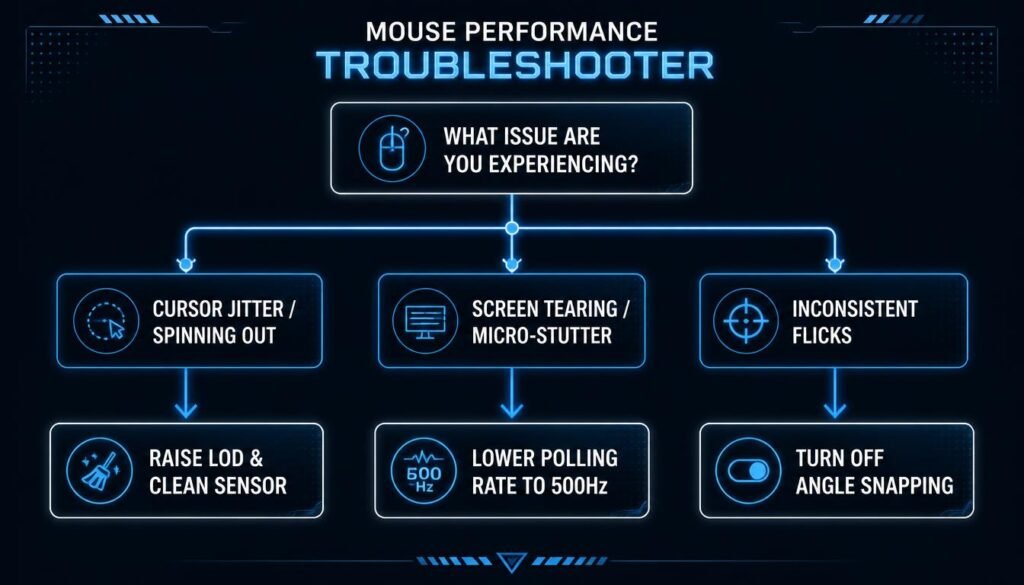
Settings feel off? Here is your quick fix guide.
Cursor jitter or spinning out? Raise your lift-off distance and clean your sensor with a cotton swab.
Screen tearing or micro-stutter? Lower your polling rate to 500Hz. Your CPU is bottlenecking at 1000Hz.
Inconsistent flicks? Check your angle snapping setting and force it OFF. That feature “corrects” your aim and ruins muscle memory.
This troubleshooting shortcut saves hours of frustration. Stop guessing and start fixing. Your mouse settings should feel predictable every single time you load into a match.
Software Handshake (G Hub, Synapse, GG)
Your hardware is ready. Now open your brand software.
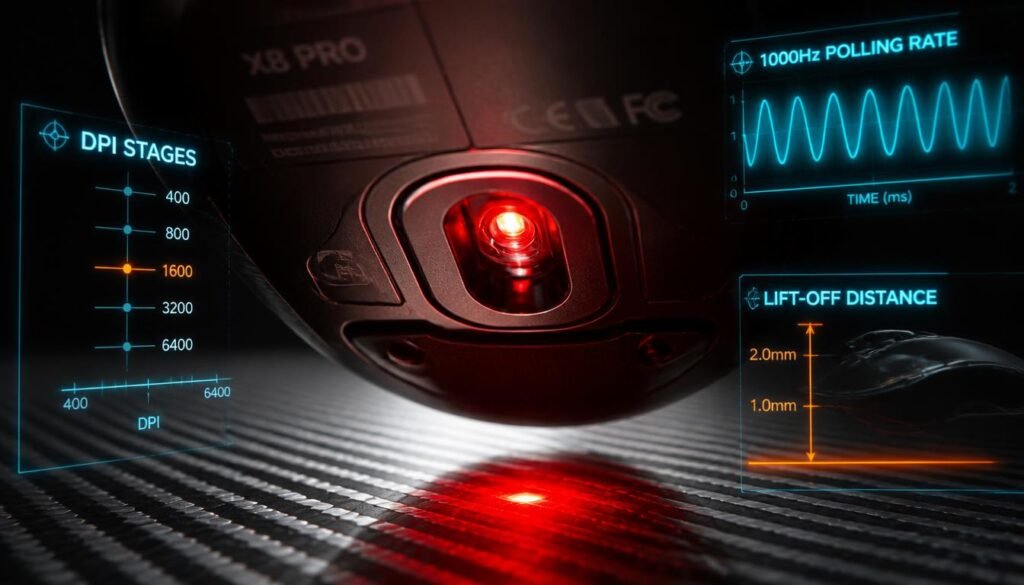
For Logitech, use G Hub to set DPI stages and assign side buttons. Razer owners open Synapse for the same. SteelSeries users fire up GG Engine.
Here is the golden rule: save your settings to onboard memory. This locks your DPI and polling rate directly into the mouse itself. Now your configurations survive PC restarts, driver crashes, and even USB swaps.
This one step prevents Windows from resetting your sensitivity mid-match. Set it once. Forget it forever. That is pro-level optimization.
The Warm-Up Protocol
H2: The 3-Minute Firing Range Routine
New settings need testing. Do not queue for ranked yet.
Hop into the firing range or Aim Lab. Start with the 180-degree turn test. Swipe your mouse across your pad. You should spin exactly 180 degrees. If you over-rotate, lower your sensitivity. If you under-rotate, raise it.
Next, practice flicking between two stationary targets. Your crosshair should land cleanly without overcorrecting.
Finally, track a strafing dummy for 30 seconds. Your aim should feel smooth, not jittery.
Do this daily to build muscle memory fast.
Advanced Tweaks & Physical Setup
Your grip style matters. Claw, palm, or fingertip changes how your wrist moves.
Adjust your mousepad friction too. Speed pads favor low DPI. Control pads need slightly higher DPI.
For competitive titles, enable Nvidia Reflex in your game settings. This cuts system latency.
Also, test your USB polling rate using free tools. Confirm it matches your settings.
Finally, consider mouse weight reduction. Lighter mice are easier to flick with.
These advanced tweaks separate casual players from serious competitors. Now you have the complete optimization package.
Frequently Asked Questions (FAQs)
Q1: What is the best DPI for gaming?
Start at 800 DPI. It is the universal sweet spot used by most pro players across all games. From there, adjust your in-game sensitivity to match your preferred eDPI. Avoid extremely high DPI settings like 3000+ unless you have a very small mousepad.
Q2: Should I turn off mouse acceleration?
Yes. Always disable “Enhance Pointer Precision” in Windows. Mouse acceleration changes cursor speed based on how fast you move your hand. This destroys muscle memory. Turn it off and never look back for consistent competitive aim.
Q3: What is eDPI and why does it matter?
eDPI stands for effective DPI. Multiply your DPI by your in-game sensitivity to get your true sensitivity number. This allows you to compare settings across different DPI configurations and copy pro player setups accurately without confusion.
Q4: What polling rate should I use for gaming?
1000Hz (1ms response time) is the gold standard. If you have a modern high-end CPU, try 4000Hz or 8000Hz. However, older games may stutter at higher rates. Stick to 1000Hz if you experience any performance issues.
Q5: Should I save my settings to onboard memory?
Absolutely. Onboard memory locks your DPI, polling rate, and button assignments directly into your mouse hardware. This prevents Windows updates, driver crashes, or USB swaps from resetting your carefully tuned configurations mid-session.
Q6: How do I fix mouse jitter or stuttering?
First, check your USB port. Move your wireless dongle to a USB 2.0 port to avoid interference. Second, lower your polling rate to 500Hz if your CPU struggles. Third, clean your sensor and raise your lift-off distance slightly.
Q7: What is cm/360 and how do I calculate it?
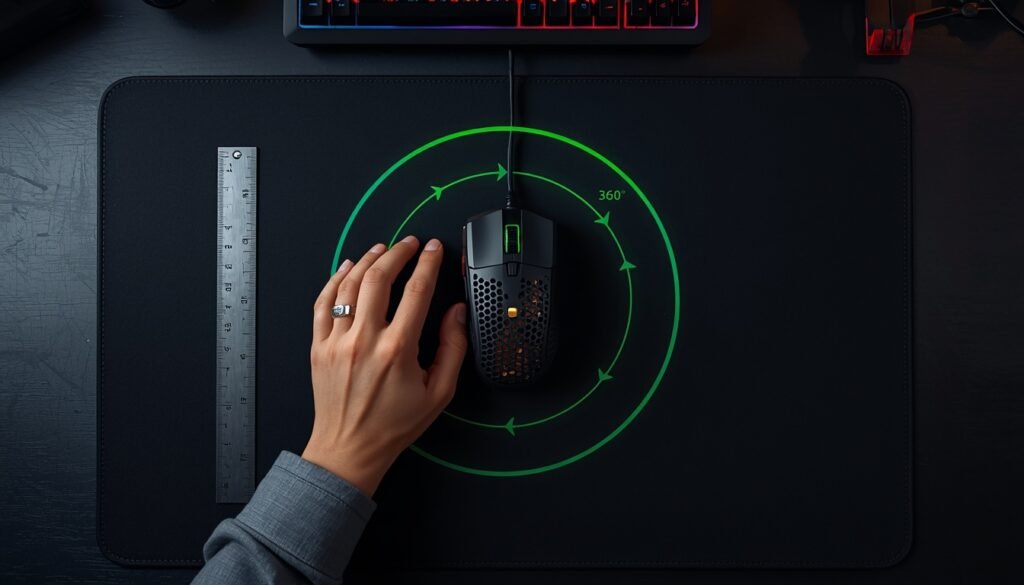
cm/360 measures how far your mouse physically travels for a full 360-degree turn in-game. Use a ruler to measure this distance. Tactical shooters need 30–50 cm. Fast tracking games prefer 15–25 cm for quick target acquisition.
Q8: How often should I change my mouse sensitivity?
Never change it after a bad game. Stick with your new settings for at least two weeks. Your brain needs time to rewire muscle memory. Constant tweaking resets progress and prevents consistent aim improvement over time.
Q9: Do I need a specific mousepad for these settings?
Yes. Speed pads (low friction) work best with low DPI. Control pads (high friction) pair better with slightly higher DPI. Match your pad’s friction to your playstyle. A mismatched pad makes your settings feel completely different in game.
Q10: Should I use Raw Input in my games?
Always enable Raw Input. This setting lets your game read mouse movements directly from the hardware driver. It completely bypasses Windows pointer speed and acceleration filters. This ensures pure, unfiltered tracking for competitive accuracy.
Conclusion & Call-to-Action
You now have everything to optimize your gaming mouse settings. Start with Windows fixes, calibrate DPI and polling rate, match your game’s eDPI, and troubleshoot issues instantly.
Remember, muscle memory takes time. Stick with your new settings for at least one week before making changes. Your aim will feel weird initially. That is normal. Push through it.
Now it is your turn. Drop a comment below telling us your main game and current eDPI. Let us help you fine-tune further.
The Golden Rule: Measuring Your cm/360
Here is the universal language of aiming. Grab a ruler. Measure how far your mouse travels for a full in-game 360-degree turn. That is your exact cm/360.
For tactical shooters like CS2, aim for 30 to 50 cm. For fast tracking games like Apex, stick to 15 to 25 cm for better speed.
Use this number when copying your pro settings. It translates perfectly across different DPI and Windows configs. This is the ultimate cheat code for reliable muscle memory.
The Psychology of Consistency
Here is the hardest rule: do not change your sensitivity after a bad game.
One poor performance does not mean your settings are broken. It means you had an off day. Changing your DPI or polling rate mid-session destroys muscle memory and resets weeks of progress.
Stick with your new mouse settings for at least two weeks. Your brain needs time to rewire. Trust the process. Consistency beats constant tweaking every single time. This mental discipline separates good players from great ones.