
Introduction
Have you ever wondered why your cursor moves too fast or too slow? How to Check Mouse DPI Checker?The answer is your mouse DPI. Knowing how to check mouse DPI checker is a skill that every computer user should have. Whether you play video games, design graphics, or just browse the web, understanding your mouse DPI can make a big difference.
In this guide, we will show you simple ways to check your mouse DPI. You don’t need to be a tech expert. We will explain everything in plain English. By the end of this article, you will know exactly how to check mouse DPI checker using five different methods.
Table of Contents
What is Mouse DPI?
DPI stands for Dots Per Inch. It measures how sensitive your mouse is. Think of it like this: when you move your mouse one inch on your desk, the cursor moves a certain number of pixels on your screen. That number is the DPI.
A higher DPI means your cursor moves faster and covers more screen space with less physical movement. A lower DPI means your cursor moves slower and gives you more control.
Here is a simple breakdown:
- Low DPI (400-800): Great for precise aiming in games like CS:GO or Valorant
- Medium DPI (800-1600): Good for everyday tasks and general use
- High DPI (1600+): Best for fast movements and large monitors
Some people also call this CPI (Counts Per Inch). It means the same thing.

Why Should You Check Your Mouse DPI?
Knowing your mouse DPI helps you in many ways:
- Improve gaming accuracy: You can set the perfect sensitivity for games like Fortnite, CS:GO, and Valorant
- Keep consistency across games: When you know your DPI, you can use the same settings in every game
- Boost work performance: Designers and editors benefit from precise cursor control
- Compare different mice: You can match settings when switching between devices
- Troubleshoot issues: If your cursor feels off, checking your DPI can help you fix it
Method 1: Check Using Mouse Driver Software
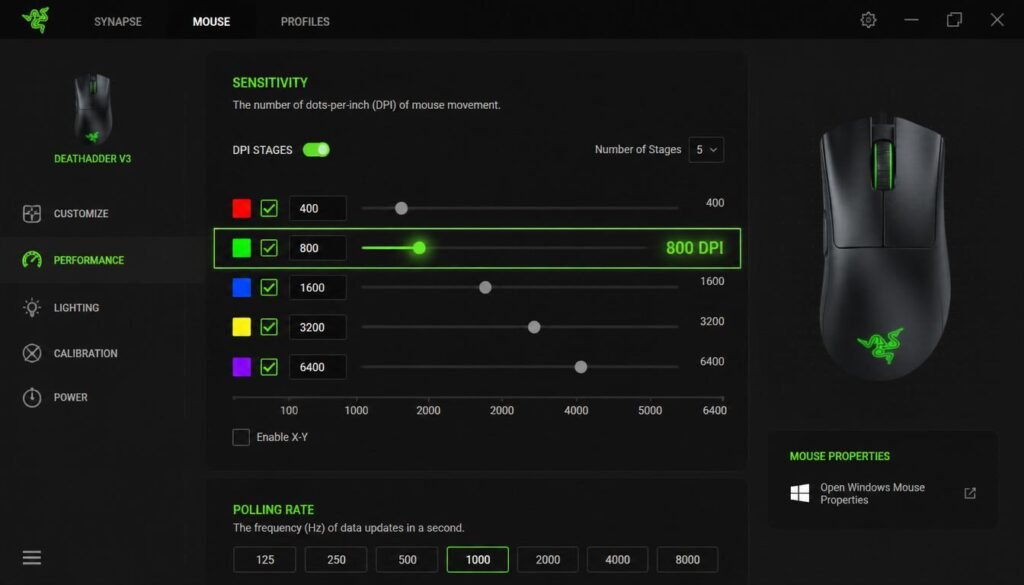
Most gaming mice come with special software. This is the easiest way to check your mouse DPI.
Step-by-step instructions:
- Find the software for your mouse brand. Common ones include:
- Logitech G Hub
- Razer Synapse
- SteelSeries Engine
- Corsair iCUE
- Open the software on your computer.
- Look for your mouse in the device list.
- Find the section labeled “DPI Settings” or “Sensitivity”.
- Your current DPI will be displayed there. You can also change it from this screen.
This method works for most modern gaming mice. If you don’t have gaming mouse software, try the next method.
Method 2: Check Product Specifications Online
If you don’t have the software, you can look up your mouse model online.
Here is how:
- Check the bottom of your mouse for the model number.
- Open your web browser and search for “[Your Mouse Model] DPI”.For example: “Logitech G502 DPI”
- Visit the manufacturer’s website or trusted review sites.
- Look for the “Specifications” or “Tech Specs” section.
- Find the DPI range listed there.
You can also check the original packaging or the user manual that came with your mouse.
Method 3: Use an Online DPI Analyzer Tool
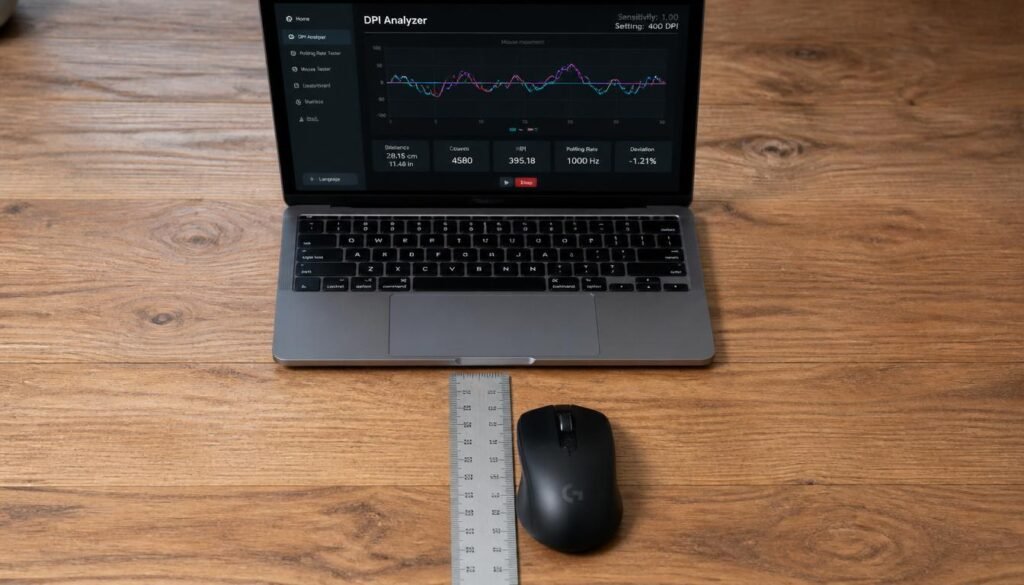
Online DPI analyzers are free and work with any mouse. This is one of the most popular ways to check mouse DPI checker.
How to use a DPI analyzer:
- Go to a trusted DPI analyzer website like:
- Select your measurement unit (inches, centimeters, or millimeters).
- Place a ruler on your desk next to your mouse.
- Enter the distance you plan to move your mouse (like 1 inch or 2 inches).
- Click and hold the mouse button.
- Move your mouse the exact distance you entered on the ruler.
- The tool will calculate your DPI based on how far the cursor moved.
Important tip: Measure the actual physical movement of your mouse on your desk, not the cursor movement on your screen.
This method gives you a real-world measurement of your mouse’s actual DPI, which may differ from the advertised specs.
Method 4: Check in Windows Mouse Settings
Windows has built-in mouse settings, but they don’t show the exact DPI number. Instead, they show a sensitivity slider.
For Windows 10/11:
- Press Windows + R to open the Run dialog box.
- Type main.cpl and press Enter.
- Go to the Pointer Options tab.
- Look at the “Select a pointer speed” slider.
- The slider has 11 levels. Each level roughly corresponds to a DPI multiplier.
However, this method does not show your actual DPI number. It only adjusts sensitivity. For the exact number, use one of the other methods.
Method 5: Manual Measurement Method
If you cannot use any other method, you can calculate your DPI manually.
What you need:
- A ruler
- Your mouse
- A piece of paper
Steps:
- Place your mouse on a clean surface.
- Mark a starting point on your desk or paper.
- Open a paint program or any blank screen.
- Move your mouse exactly 1 inch (or 2 inches) from the starting point.
- Count how many pixels your cursor moved on the screen.
- Divide the number of pixels by the inches you moved.
For example, if your cursor moved 800 pixels in 1 inch, your DPI is 800.
This method takes more effort but works for any mouse.
How to Change Your Mouse DPI
Once you know your DPI, you might want to change it. Here is how:
Using mouse software:
- Open your mouse’s driver software
- Find the DPI settings
- Drag the slider to your preferred DPI
- Save your changes
Using a DPI button:
- Many gaming mice have a DPI button on top
- Press it to cycle through preset DPI levels
- Look for a light or indicator that shows the current level
Using Windows settings:
- Go to Mouse Properties > Pointer Options
- Adjust the pointer speed slider
- Remember: this is not as precise as using dedicated software
Common Mistakes to Avoid
When you check your mouse DPI, watch out for these common errors:
Mistake 1: Confusing DPI with sensitivity
DPI is a hardware setting. Sensitivity is a software setting. They work together but are not the same.
Mistake 2: Not using a ruler for manual testing
Guessing the distance will give you wrong results. Always use a ruler.
Mistake 3: Moving the mouse too fast or too slow
For accurate results, move your mouse at a normal, steady speed.
Mistake 4: Forgetting to check the DPI button
Some mice have a dedicated DPI button. Pressing it changes your DPI without warning.
Mistake 5: Relying only on Windows settings
Windows doesn’t show your exact DPI. Use dedicated tools for accurate numbers.
Frequently Asked Questions (FAQ)
What is a mouse DPI checker?
A mouse DPI checker is a tool that measures your mouse’s sensitivity. It tells you how many pixels your cursor moves for every inch you move your mouse.
How do I check my mouse DPI without software?
You can check your mouse DPI without software by using an online DPI analyzer or by manually measuring the cursor movement with a ruler.
How do I check my mouse DPI in Windows 10?
Windows 10 does not show your exact DPI number. You can check the pointer speed in Mouse Properties, but for the exact DPI, use your mouse’s software or an online tool.
How to check mouse DPI on Mac?
On a Mac, go to System Preferences > Mouse > Point & Click. Adjust the tracking speed, then use an online DPI analyzer for exact numbers.
Is higher DPI always better?
No. Higher DPI is not always better. It depends on what you are doing. Gamers often prefer lower DPI for precision. Casual users may prefer higher DPI for speed.
Can I check mouse DPI online for free?
Yes. Many free online DPI analyzers work right in your browser. You don’t need to download or install anything.
What DPI should I use for gaming?
Most professional gamers use between 400 and 800 DPI. This gives them better control and precision for aiming.

Conclusion
Knowing how to check mouse DPI checker is a valuable skill. Whether you use driver software, an online DPI analyzer, or manual measurement, you now have five different methods to find your mouse DPI.
Remember these key points:
- DPI stands for Dots Per Inch and measures mouse sensitivity
- Higher DPI = faster cursor movement
- Lower DPI = more precision and control
- Use a DPI analyzer for the most accurate results
- Check your mouse software for easy DPI settings
Now it’s your turn. Pick one method from this guide and check your mouse DPI today. Your gaming, design work, or everyday computing will thank you for it.