
Introduction
Have you ever wondered why your mouse cursor moves too fast or too slow? The answer is usually your mouse DPI.
DPI stands for Dots Per Inch. It tells you how sensitive your mouse is. When you move your mouse one inch, the cursor moves a certain number of pixels on your screen. That number is your DPI.
Knowing how to check DPI on your mouse can help you:
- Play games better
- Work more comfortably
- Fix cursor speed issues
In this guide, I’ll show you several easy ways to check your mouse DPI. No technical skills are needed. Let’s get started!
Table of Contents
What Is Mouse DPI?
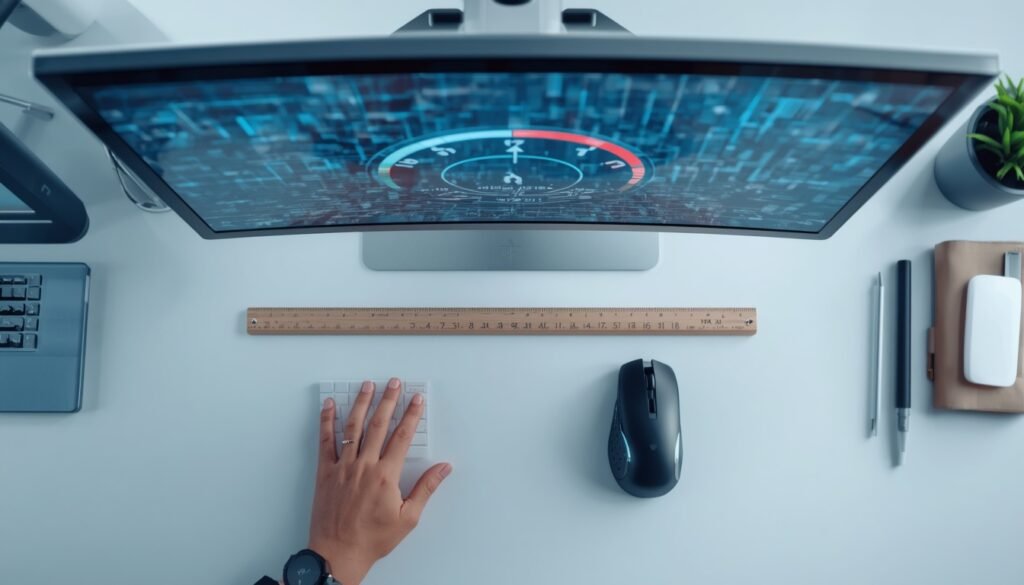
DPI stands for Dots Per Inch. It measures how far your cursor moves when you move your mouse one inch.
Here’s a simple way to understand it:
- If your mouse is set to 800 DPI, moving it one inch moves the cursor 800 pixels on your screen.
- If your mouse is set to 1600 DPI, moving it one inch moves the cursor 1600 pixels.
Higher DPI = faster cursor movement.
Lower DPI = slower, more precise cursor movement.
Some people also call this CPI (Counts Per Inch). They mean the same thing.
Why Does Mouse DPI Matter?
Your mouse DPI affects how you use your computer every day. Here’s why it matters:
- Gaming: Gamers often prefer lower DPI (400–1600) for precise aiming in shooters. Higher DPI helps with fast movements in strategy games.
- Work: Designers and video editors may want higher DPI for quick screen navigation.
- Comfort: The right DPI reduces wrist strain. You don’t want to move your mouse across your desk just to reach the other side of the screen.
- Consistency: Knowing your DPI helps you keep the same feel across different games and computers.
How to Check DPI on Mouse – 5 Easy Methods
Here are five simple ways to check your mouse DPI. Pick the one that works best for you.
Method 1: Check the Box or Product Page
This is the easiest method. Look at:
Most brands list the DPI range. For example, a gaming mouse might say “DPI: 200–25,600”.
Important: This number is usually the maximum DPI. Your mouse might be set to a lower value right now.
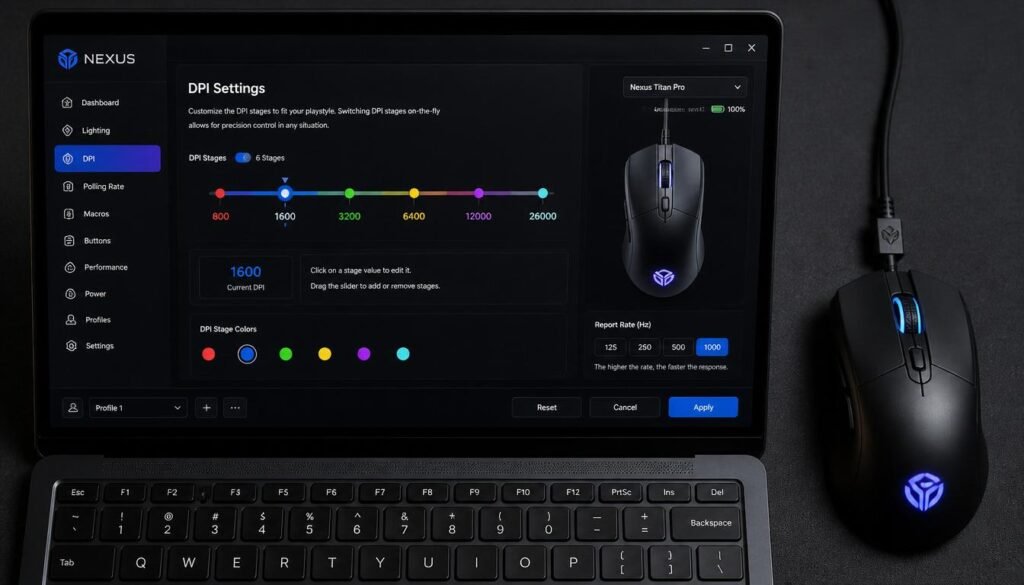
Method 2: Use the Manufacturer’s Software
Many mouse brands have free software that shows your exact DPI. Here are some popular ones:
| Brand | Software |
|---|---|
| Logitech | Logitech G HUB or Logitech Gaming Software |
| Razer | Razer Synapse |
| SteelSeries | SteelSeries Engine |
| Corsair | Corsair iCUE |
| Microsoft | Microsoft Mouse and Keyboard Center |
How to use it:
- Download the software from the brand’s website.
- Install and open it.
- Select your mouse from the list.
- Look for the DPI settings section.
Method 3: Use an Online DPI Analyzer
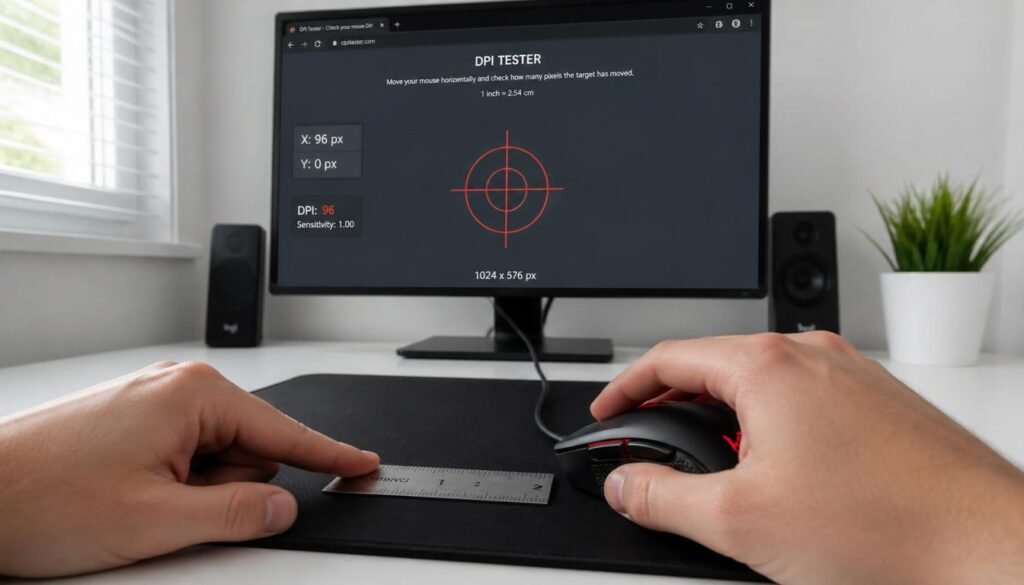
This is one of the easiest ways to check your DPI. No installation is needed. Just use your web browser.
Popular online DPI analyzers:
How to use them:
- Visit the website.
- Enter a target distance (like 1 inch or 2 inches).
- Move your mouse that exact distance on your mouse pad.
- The tool calculates your DPI automatically.
Method 4: Manual Measurement with a Ruler
If you don’t want to use software, you can measure your DPI with a ruler.
Step-by-step:
- Open Microsoft Paint or any drawing app.
- Set the zoom to 100%.
- Place your cursor at the top-left corner (0,0).
- Take a ruler and mark a 1-inch (2.54 cm) line on your mouse pad.
- Move your mouse exactly 1 inch along that line.
- Look at how many pixels the cursor moved. That number is your DPI.
Tip: Turn off mouse acceleration first. We’ll explain why in the “Common Mistakes” section.
Method 5: Use the DPI Button on Your Mouse
Many gaming mice have a DPI button. It’s usually behind the scroll wheel or on the side.
When you press this button:
- Your DPI changes to the next preset.
- Some mice show the current DPI on screen or with a color change.
Example: The Logitech G502 lets you cycle through DPI presets like 800 → 1600 → 3200.
How to Check DPI on Windows
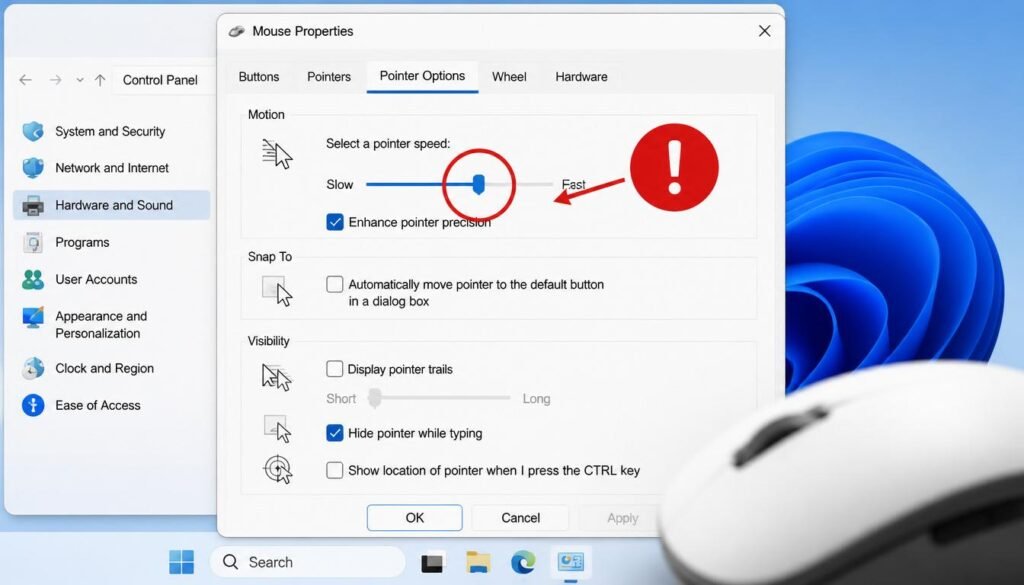
Windows does not show your exact DPI number. The pointer speed slider in Windows settings is not your DPI — it’s a software multiplier.
However, you can still check your mouse settings:
- Press
Windows + Rto open the Run box. - Type
main.cpland press Enter. - Go to the Pointer Options tab.
- You’ll see a slider under “Motion.” This changes sensitivity, but it doesn’t show DPI.
To get your actual DPI on Windows, use one of these methods:
- Manufacturer software (Method 2)
- Online DPI analyzer (Method 3)
- Manual measurement (Method 4)
How to Check DPI on Mac
Mac computers also don’t show your exact DPI. But you can adjust sensitivity and test your DPI.
Adjust tracking speed:
To measure your DPI on Mac:
- Use an online DPI analyzer (Method 3).
- Use third-party apps like SteerMouse or USB Overdrive.
Common Mistakes to Avoid
1. Confusing DPI with Pointer Speed
DPI is a hardware setting. Pointer speed is a software setting. They are not the same thing.
2. Forgetting to Turn Off Mouse Acceleration
Mouse acceleration changes cursor speed based on how fast you move the mouse. This can mess up your DPI measurement.
To turn it off on Windows:
To turn it off on Mac:
3. Trusting the Box Too Much
The DPI on the box is often the maximum DPI. Your mouse might be set to a different value right now.
4. Only Testing Once
Move your mouse several times and take the average. This gives you a more accurate result.

Frequently Asked Questions
What is DPI on a mouse?
DPI stands for Dots Per Inch. It measures how many pixels your cursor moves when you move your mouse one inch. Higher DPI means faster cursor movement.
How do I check my mouse DPI?
You can check your mouse DPI by:
- Looking at the product box or manual
- Using the manufacturer’s software
- Using an online DPI analyzer
- Measuring manually with a ruler
- Pressing the DPI button on your mouse
Can I check DPI in Windows settings?
No. Windows shows pointer speed, not your actual DPI. You need other methods to find your true DPI.
What DPI is best for gaming?
For first-person shooters, most players use 400–1600 DPI for precise aiming. For other games, higher DPI may work better. It comes down to personal preference.
What DPI is best for everyday use?
Most people find 800–1600 DPI comfortable for regular computer work. Try different settings and see what feels right for you.
Does higher DPI mean better mouse?
Not necessarily. Higher DPI isn’t always better. The best DPI depends on what you’re doing and what feels comfortable to you.
How do I change my mouse DPI?
You can change your DPI using:
- The DPI button on your mouse (if it has one)
- The manufacturer’s software
- Windows pointer speed settings (though this changes sensitivity, not true DPI)
Conclusion
Knowing how to check DPI on your mouse is useful for gamers, designers, and anyone who uses a computer. Your DPI affects how your cursor moves, how comfortable you feel, and how well you perform in games.
Here’s a quick recap of what we covered:
- DPI stands for Dots Per Inch. It measures cursor sensitivity.
- You can check your DPI using the product box, manufacturer software, online analyzers, manual measurement, or a DPI button.
- Windows and Mac do not show your exact DPI in their settings.
- Always turn off mouse acceleration before measuring DPI.
Now you have all the tools you need to check your mouse DPI. Try one of these methods today and see what your mouse is really doing!
Have questions? Drop them in the comments below. I’d love to help!