
How to Turn Off Mouse Acceleration is a common question among gamers who want more precise, consistent, and predictable mouse control. Mouse acceleration changes how far your cursor moves based on how quickly you move the mouse, meaning the same physical movement can produce different on-screen results.
For gamers, this can make aiming feel inconsistent and make it harder to build reliable muscle memory. That’s why many competitive players choose to turn off mouse acceleration for a more consistent 1:1 input response, where the same mouse movement produces the same cursor distance every time. In this guide, you’ll learn how to turn off mouse acceleration on Windows and understand why disabling it can improve mouse accuracy and aiming consistency.
Table of Contents
Mouse Acceleration: ON vs. OFF The Ultimate Showdown
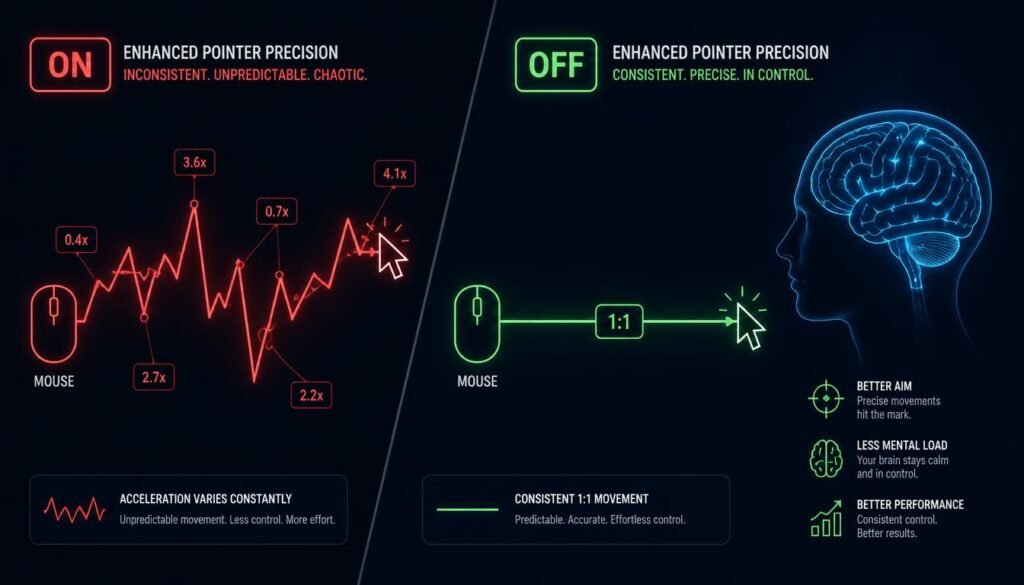
So, should you disable mouse acceleration? Here’s the honest truth it depends on what you do. If you’re a casual user browsing the web or working in spreadsheets, keep it on. It makes your cursor feel responsive and snappy.
But if you’re a gamer? Definitely turn it off. Mouse acceleration on vs off for gaming isn’t even a debate among pros. With it on, your aim becomes unpredictable. With it off, your brain builds muscle memory because every flick equals the same distance. That’s why why turn off mouse acceleration is such a common question in FPS communities. The answer: consistency equals accuracy. Simple as that.

How to Turn Off Mouse Acceleration in Windows 11
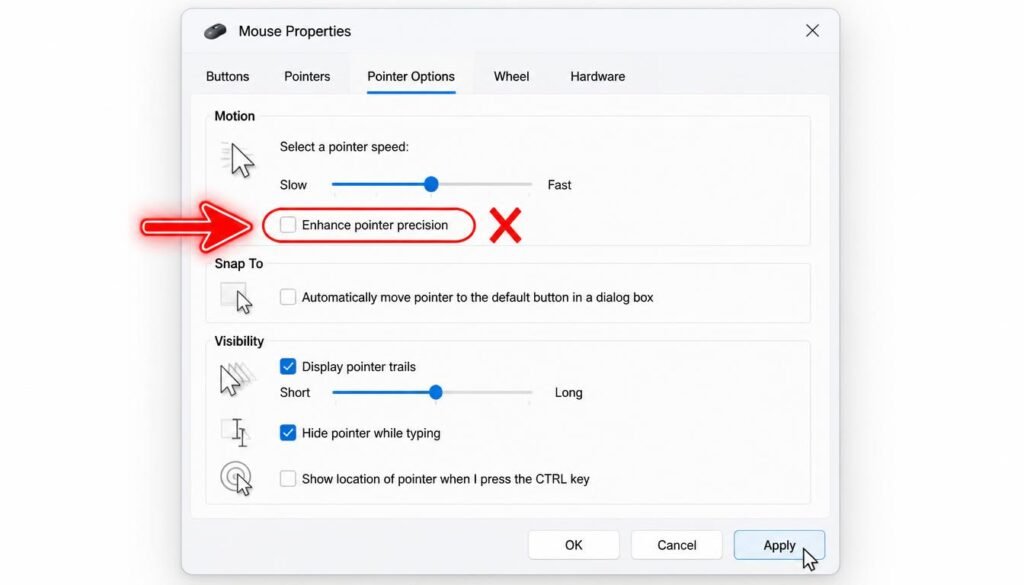
Let’s start with the most common request how to turn off mouse acceleration Windows 11. Microsoft calls it “Enhance Pointer Precision,” which sounds helpful, but it’s actually the culprit.
Here’s the quickest route: Open Settings > Bluetooth & devices > Mouse > Additional mouse settings. A new window pops up—click the Pointer Options tab, then uncheck “Enhance pointer precision.” Hit Apply and you’re done.
That’s it. You’ve just disabled mouse acceleration Windows 11 style. Your cursor will feel slower initially, but that’s a good sign more control awaits.
How to Disable Mouse Acceleration in Windows 10
Got Windows 10? No worries the process is nearly identical to Windows 11. The trick is still hunting down that same sneaky setting called “Enhance Pointer Precision.”
Head to the Control Panel (just search for it in your start menu). Click Mouse, then jump to the Pointer Options tab. You’ll spot a checkbox labeled “Enhance pointer precision“ uncheck it immediately. Hit Apply and OK.
That’s all it takes to disable mouse acceleration Windows 10. Your cursor will feel a bit heavier, but trust the process that’s precision replacing unpredictability.
How to Turn Off Mouse Acceleration in Windows 7 & 8.1
Yes, we haven’t forgotten you. Many budget gamers still rock Windows 7 or 8.1, and the fix is just as simple.
Open the Control Panel and click Mouse. Navigate to the Pointer Options tab. You’ll see that familiar checkbox labeled “Enhance pointer precision” uncheck it. Click Apply, then OK.
That’s how you turn off mouse acceleration Windows 7 and 8.1. The setting hides in the same spot across all older versions. Your aim will thank you, even if your operating system feels a bit outdated.
The Registry Edit: Permanently Disable Acceleration (Windows)
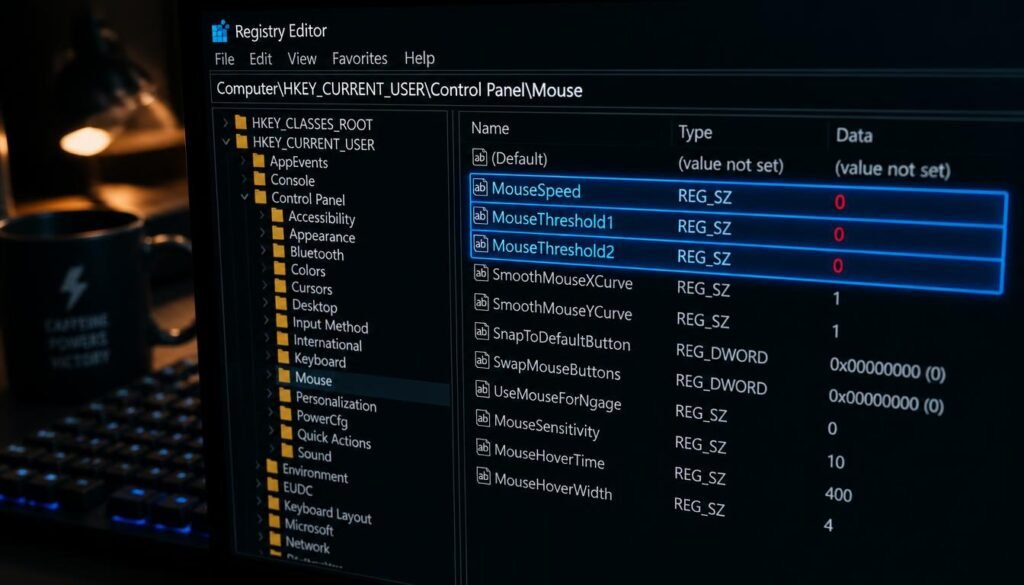
Want to make sure acceleration never comes back? Time for the mouse acceleration registry edit. This is the nuclear option that overrides everything else.
Press Win + R, type regedit, and hit Enter. Navigate to HKEY_CURRENT_USER\Control Panel\Mouse. Find MouseSpeed, MouseThreshold1, and MouseThreshold2. Double-click each and set their value to 0.
That’s the MouseThreshold1 MouseThreshold2 registry fix a permanent kill switch. Even if Windows updates try to revert things, this keeps acceleration disabled for good.
Disable Acceleration via PowerShell / CMD
For the tech-savvy crowd, here’s a faster way. Open Command Prompt or PowerShell as Administrator.
Paste this command and hit Enter:
text
reg add "HKEY_CURRENT_USER\Control Panel\Mouse" /v MouseSpeed /t REG_SZ /d 0 /f
reg add "HKEY_CURRENT_USER\Control Panel\Mouse" /v MouseThreshold1 /t REG_SZ /d 0 /f
reg add "HKEY_CURRENT_USER\Control Panel\Mouse" /v MouseThreshold2 /t REG_SZ /d 0 /f
That’s the disable mouse acceleration via CMD Windows method in seconds. No clicking through menus just pure command-line efficiency for power users who value speed.
How to Turn Off Mouse Acceleration on Mac (macOS)
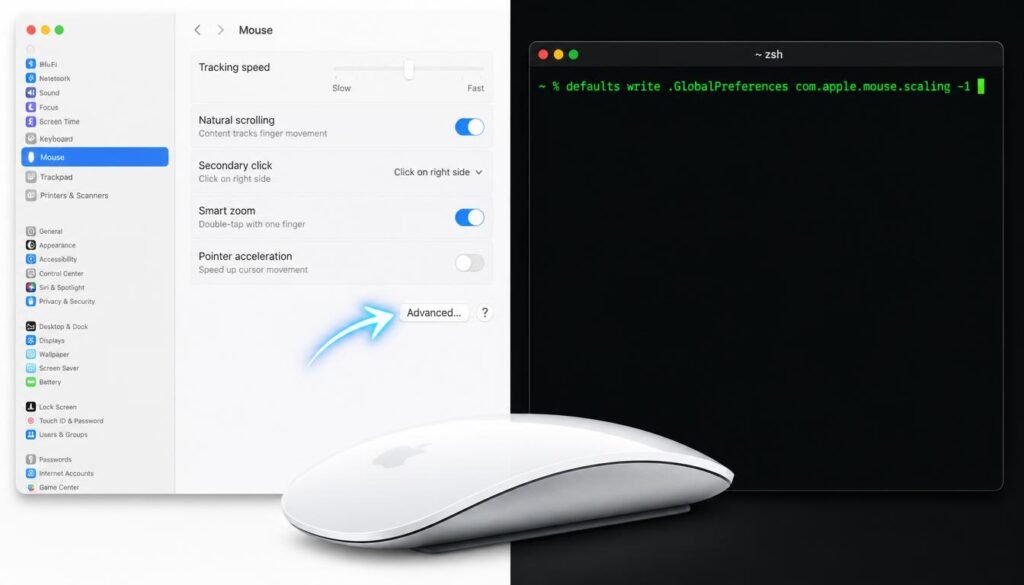
Mac users, you’re not off the hook. Apple hides acceleration behind a friendlier name—”Pointer acceleration.”
For the GUI method: Open System Settings > Mouse > Advanced > toggle off “Pointer acceleration.” That’s the quickest disable mouse acceleration Mac fix.
Prefer the Terminal? Type this:
text
defaults write .GlobalPreferences com.apple.mouse.scaling -1
That’s the terminal mac disable acceleration command. For trackpad users, follow the same steps in Trackpad settings. Now your Mac cursor moves exactly as you move your hand.
How to Disable Mouse Acceleration on Linux (GNOME / Ubuntu)
Linux users, this one’s for you. The fix varies by desktop environment, but for GNOME (the most popular), it’s dead simple.
Open your Terminal and paste this command:
text
gsettings set org.gnome.desktop.peripherals.mouse accel-profile 'flat'
That’s it. You’ve just disabled mouse acceleration Linux Ubuntu style. The “flat” profile tells your system to stop speeding up your cursor based on movement speed.
For other environments like KDE or Xorg, check your system settings under Mouse—you’ll find similar acceleration options to toggle off.
How to Turn Off Mouse Acceleration on Steam Deck
Steam Deck users, listen up. Your handheld runs Linux, so the fix mirrors the GNOME method.
Switch to Desktop Mode (hold the Power button and select it). Open System Settings > Mouse > Acceleration Profile > select Flat.
That’s the steam deck mouse acceleration fix—no more unpredictable cursor jumps when docked with a mouse.
Alternatively, open Konsole (Terminal) and run:
text
gsettings set org.gnome.desktop.peripherals.mouse accel-profile 'flat'
Now your disable mouse acceleration steam deck is complete. Perfect for precise aiming in docked gaming sessions.
How to Disable Mouse Acceleration on ChromeOS
Chromebook users, we haven’t forgotten you. More people are plugging external mice into their Chromebooks than ever before, and acceleration can throw off your precision.
Open Settings > Device > Mouse. You’ll see a toggle labeled “Mouse acceleration” —simply turn it off.
That’s the entire disable mouse acceleration ChromeOS process—literally one click. No hidden menus, no registry edits, no Terminal commands. Just a simple toggle.
If you use a touchpad, the same setting applies. Now your Chromebook cursor moves predictably, whether you’re editing documents or casually gaming.
Disable Mouse Acceleration In-Game (Valorant, CS2, Apex, Fortnite, Overwatch 2)
Here’s a pro tip: many games have a Raw Input setting that bypasses Windows entirely. For disable mouse acceleration Valorant, head to Settings > Controls > enable “Raw Input Buffer.” In CS2, it’s under Keyboard/Mouse options. Mouse acceleration settings CS2 are famously off for consistency.
For Apex, Fortnite, and Overwatch 2, search for “Raw Input” in advanced mouse settings. Enabling this overrides all Windows acceleration, giving pure, unfiltered 1:1 movement regardless of your OS.
Disable Acceleration in Gaming Mouse Software (Razer, Logitech, SteelSeries, Corsair)
Your gaming mouse software might be secretly re-enabling acceleration. Don’t let it.
In Razer Synapse, open your mouse profile, go to Performance, and disable “Acceleration.” For Logitech G Hub, check your mouse settings and turn off “Angle Snapping” and pointer acceleration. SteelSeries GG users can find acceleration toggles under Engine settings. And in Corsair iCUE, look for pointer acceleration under the DPI settings tab.
That’s the razer synapse mouse acceleration disable fix in action. Always double-check these—your software should help, not hurt, your aim.
My Mouse Feels Slow After Turning Off Acceleration How to Fix It
Feeling that sluggish cursor? Don’t panic that’s actually proof your fix worked. Without acceleration boosting your speed, you’re now getting raw, honest movement.
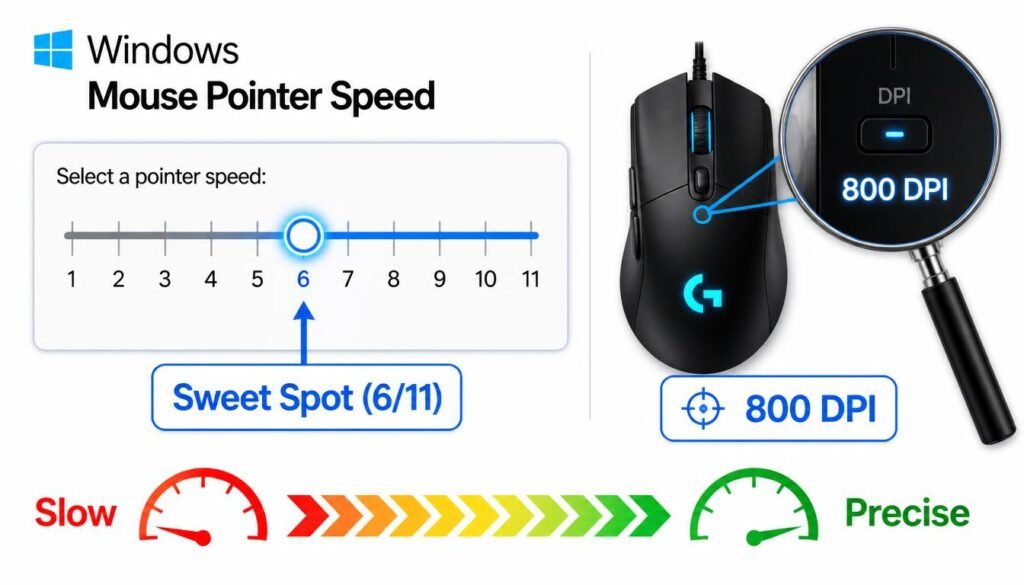
Here’s the pro fix: open Windows Settings > Bluetooth & devices > Mouse > adjust the “Mouse pointer speed” slider. Set it to the 6th notch (dead center) that’s the sweet spot for 1:1 movement.
Then adjust your mouse DPI via your gaming software. Most pros use 400–800 DPI. That’s the best dpi for gaming range. Now your mouse feels slow after turning off acceleration? Not anymore. Precision restored.
Frequently Asked Questions
1. Is Enhance Pointer Precision the same as mouse acceleration?
Yes exactly the same. Microsoft just uses a friendlier name. When you uncheck “Enhance pointer precision,” you’re effectively disabling mouse acceleration in Windows. Don’t let the different name confuse you.
2. Does turning off mouse acceleration improve FPS?
No. It doesn’t affect your frame rate at all. However, it dramatically improves your aiming consistency, which matters far more than FPS in competitive shooters. Think accuracy over frames.
3. Should I disable mouse acceleration for work or general use?
Probably not. For everyday browsing, spreadsheets, or design work, acceleration helps your cursor feel snappy and responsive. Keep it on for work, turn it off for gaming. Context matters.
4. Why does my mouse feel slower after turning off acceleration?
Because you’re no longer getting a speed boost from fast flicks. That slowness is actually accuracy. To fix it, adjust your mouse pointer speed slider to the 6th notch and increase your mouse DPI via your gaming software.
5. Why does mouse acceleration keep turning back on?
Common culprits: Windows updates, peripheral software overriding settings, or driver reinstalls. The permanent fix is the registry edit set MouseSpeed, MouseThreshold1, and MouseThreshold2 to 0. That locks it for good.
6. Do I need to disable Windows acceleration if I use Raw Input in games?
Yes. While Raw Input bypasses Windows for that specific game, some older titles and launchers still use Windows settings. Disable it at the OS level anyway it guarantees consistency across every application.
7. What’s the difference between DPI, sensitivity, and acceleration?
DPI is hardware how many pixels your mouse reports per inch. Sensitivity is software scaling. Acceleration is dynamic speed-scaling. Pro tip: keep DPI fixed (400–800), adjust sensitivity in-game, and always turn acceleration off.
8. Does mouse acceleration affect trackpads too?
Yes. On laptops, acceleration applies to both trackpads and external mice. On Mac, you’ll find the toggle in Trackpad settings. On Windows, the same “Enhance pointer precision” checkbox affects both devices simultaneously.
9. Should I turn off mouse acceleration on console or controller?
No this setting only applies to mice. Consoles use joystick aim assist, which works completely differently. This guide is strictly for PC, Mac, Linux, and Chromebook mouse users.
10. What’s the best DPI for gaming after disabling acceleration?
Most pros use 400 800 DPI. This range gives you precise control without being too twitchy. Pair it with the Windows pointer speed at the 6th notch (middle), then fine-tune your in-game sensitivity to taste.
Final Verdict: Turn It Off for Gaming, Keep It On for Everything Else
So, should I disable mouse acceleration? Here’s the bottom line. If you’re a gamer chasing consistency, absolutely turn it off. Your muscle memory will thank you. If you’re just browsing or working, leave it on.
We’ve covered every platform—Windows, Mac, Linux, Steam Deck, even ChromeOS. Now you know exactly how to turn off mouse acceleration wherever you play.
Take control of your cursor. Build predictable aim. And remember precision beats speed every single time. Happy gaming.